Formatting and Renaming
Formatting and rename behavior depends on the selected server. These operations use structured language-server edits rather than plain search and replace.
Format a Document
Press alt+shift+f or run lsp:format-document.
The server must advertise document formatting. The plugin supplies the
document's indentation information and trimming preferences to the request.
Manual formatting updates the buffer; save it when you are ready.
Format on Save
Automatic formatting is disabled by default.
- User Module
- Settings UI
local config = require "core.config"
config.plugins.lsp.request_format_on_save = true
Enable Request Document Format on Save under Plugins > Language Server Protocol.
Formatting is asynchronous: the initial save happens first, then the server's formatting result is applied and saved again. This is not a formatter that blocks the first disk write. Avoid enabling another format-on-save integration for the same files unless you intend both to run.
Rename a Symbol
- Select the symbol's name on a single line.
- Press alt+r or run
lsp:rename-symbol. - Enter the replacement name in New Symbol Name.
- Wait for the Symbol Rename view to calculate candidate edits.
- Inspect the listed files and occurrences, adjusting their checkboxes.
- Choose Apply Rename and confirm the operation.
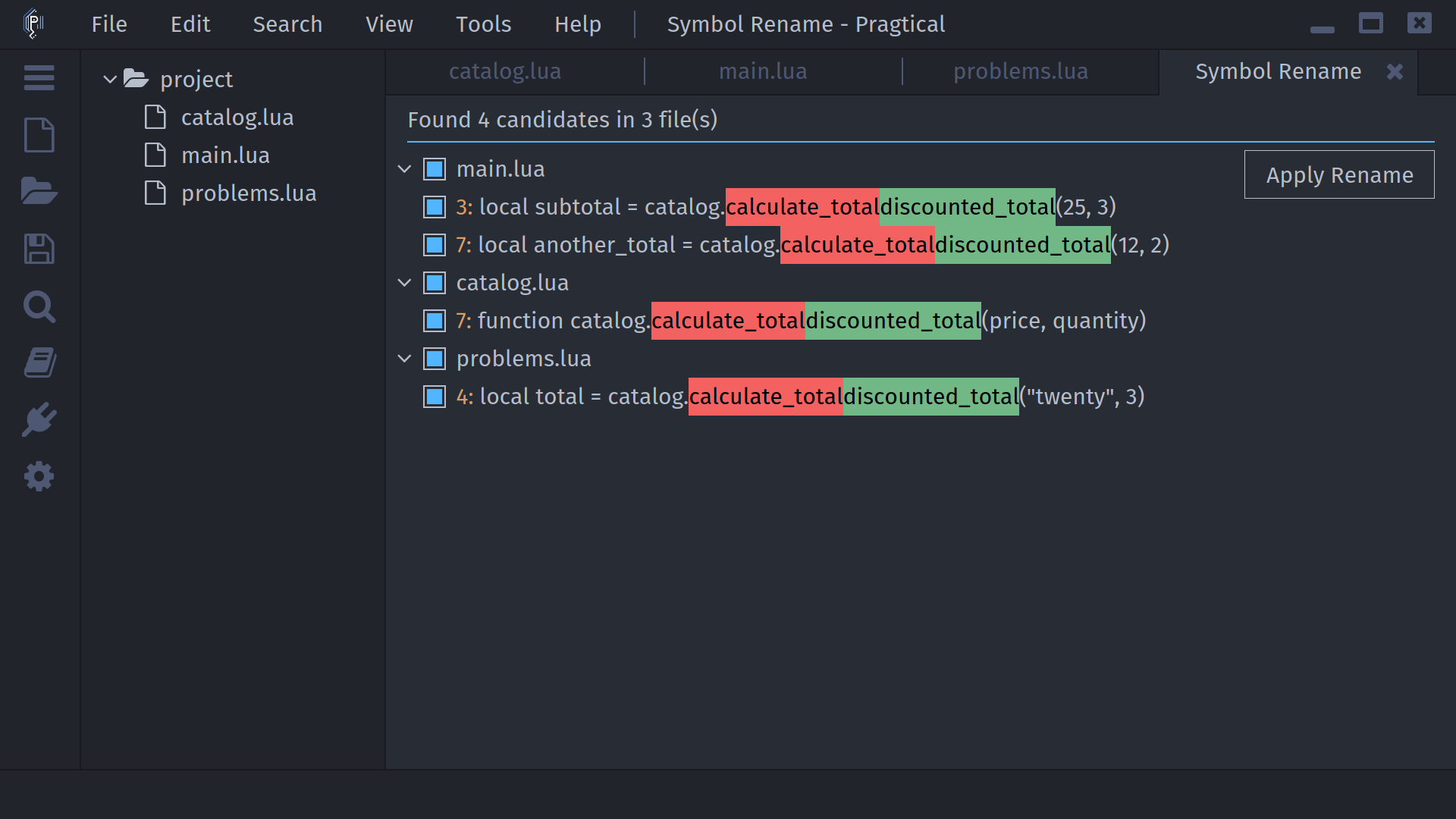
The command requires a selection; placing the caret inside a word without selecting it only logs a request to select a symbol. Only one rename preview can be open at a time.
Use up/down to select preview entries, left/right to expand or collapse them, space to toggle a checkbox, and enter to inspect an occurrence in its document. Closing the preview before applying leaves files unchanged.
File Operations and Saving
A server rename response may also contain resource operations. The preview shows their paths and statuses alongside text changes. A delete operation can be skipped by double-clicking its row; check dependencies before excluding operations from a server-provided rename.
Applying a rename writes selected file locations and reloads affected open documents. Save or otherwise preserve unsaved work before confirming, and avoid editing files while the rename runs. The confirmation dialog explains the reload behavior. Check the preview's result counts and editor log for failures; do not assume all files changed if an operation failed.
For quick fixes that apply immediately instead of opening this preview, see Code Actions.