Branches and Tags
Workbench Branches and Tags provide quick previews. Their Manage...
action opens a dedicated searchable table with the complete context menu.
You can also run scm:view-branches or scm:view-tags directly.
Work with Branches
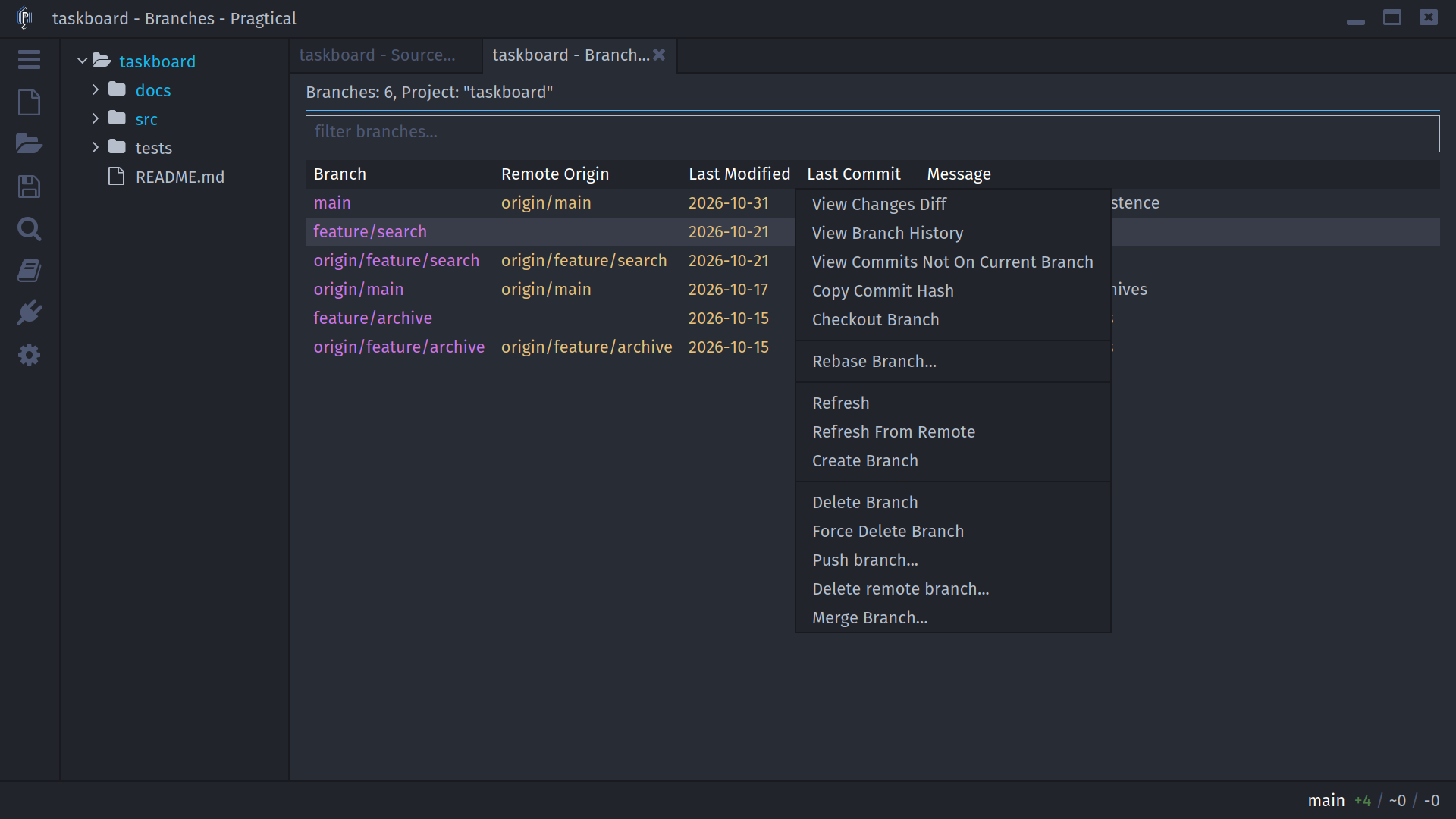
The branches list shows Branch, Remote Origin, Last Modified,
Last Commit, and Message, with newer branch tips first. Git includes
local and remote-tracking branches. Remote Origin is the tracking reference
when available; it is not necessarily a remote literally named origin.
Select a row before invoking item-specific actions. Right-clicking a row selects it for the context menu. Refresh reloads local data; Refresh From Remote fetches first. Create Branch does not require a selected row.
Create a Branch
Run scm:create-branch, or choose Create Branch from the branches list:
- Enter a branch name, such as
feature/priorities. - Filter and select the Base branch from the list.
- Enable Checkout after creation if you want to switch immediately.
- Choose Create.
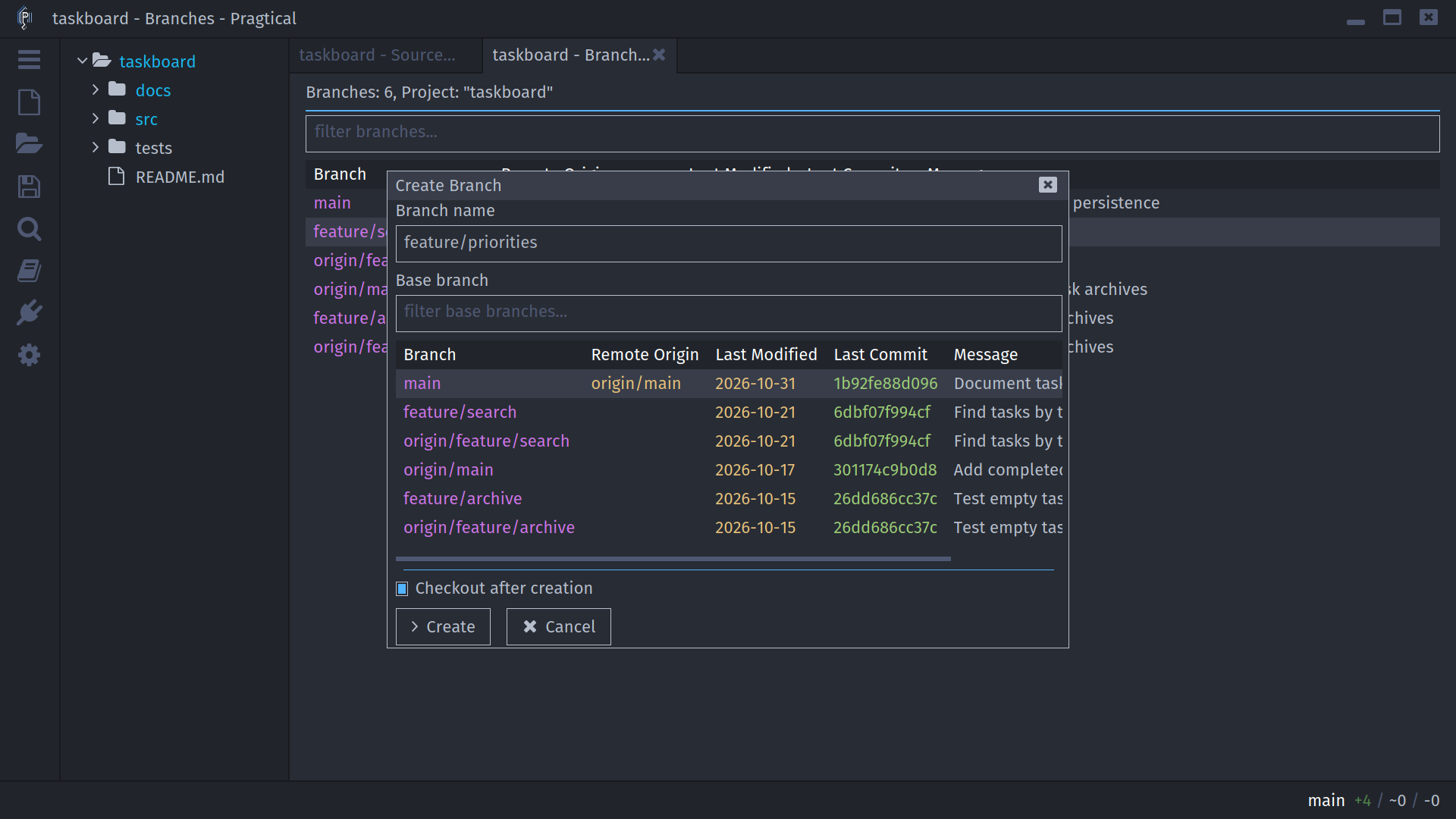
Creating a branch and checking it out are separate steps. If creation succeeds but checkout fails, the new branch can still exist. Read the reported error before trying to create it again.
Check Out a Branch
Double-click a branch in the standalone list, or choose Checkout Branch. The workbench exposes Checkout... for its selected branch or tag.
If there are local changes and the backend supports stashing, SCM can offer to stash before checkout. Stashed work remains saved; inspect and apply it when appropriate rather than assuming it was automatically restored.
Git remote-tracking rows are useful for inspection; they are not local branch names. Native Git checkout behavior determines whether a selected ref attaches to a local branch or leaves a detached checkout. To continue work on a clear local branch, create one from the desired base and check it out.
Compare History
The context menu distinguishes two questions:
- View Branch History shows history for the selected branch/ref. For Git, this includes reachable ancestors shared with other branches.
- View Commits Not On Current Branch shows commits reachable from the selected branch that are not ancestors of the current checkout. It can be empty when that work is already merged.
Fossil branch history follows Fossil's branch timeline. Its range query also excludes commits already ancestral to the chosen base. Neither query changes the checkout. Copy Commit Hash copies the selected branch tip's full hash.
View Changes Diff opens the backend's branch comparison. Git uses a merge-base comparison toward the selected branch; Fossil uses its native branch diff. See comparison direction for the distinction between branch and tag diffs.
Rebase a Branch
For a local Git branch, choose Rebase Branch..., select the branch to rebase onto, and choose a conflict strategy:
| Strategy | Behavior |
|---|---|
| Normal | Stop when conflicts need manual resolution |
| Prefer Base Changes | Favor the base side for conflicting changes where Git can do so |
| Prefer Branch Changes | Favor the replayed branch side for conflicting changes where Git can do so |
The side labels matter: during a rebase, Git's ours side is the new base and
theirs is the commit being replayed. A preference is not a guarantee of a
conflict-free or correct result. Review the resulting diff and tests.
Rebasing rewrites commit identity. Use it for appropriate local work and coordinate before rebasing shared commits. Fossil does not advertise branch rebase, so this action is not offered for Fossil repositories.
Delete or Close a Branch
Delete Branch and Force Delete Branch both ask for confirmation.
- Git's normal deletion refuses an unmerged branch according to Git's merge checks. Force deletion bypasses that protection; the branch name is removed even when its tip contains work not preserved by another branch.
- Fossil closes the branch. Its check-ins remain in repository history, but the closed branch is omitted from SCM's open-branches list. Fossil ignores the force parameter, so Force Delete does not destroy its history.
Local branch deletion does not delete a branch on a remote server. Git has separate remote-ref actions. Local deletion and rebase are not offered for remote-only rows. Git also refuses to delete the currently checked-out branch; switch to another branch first.
Work with Tags
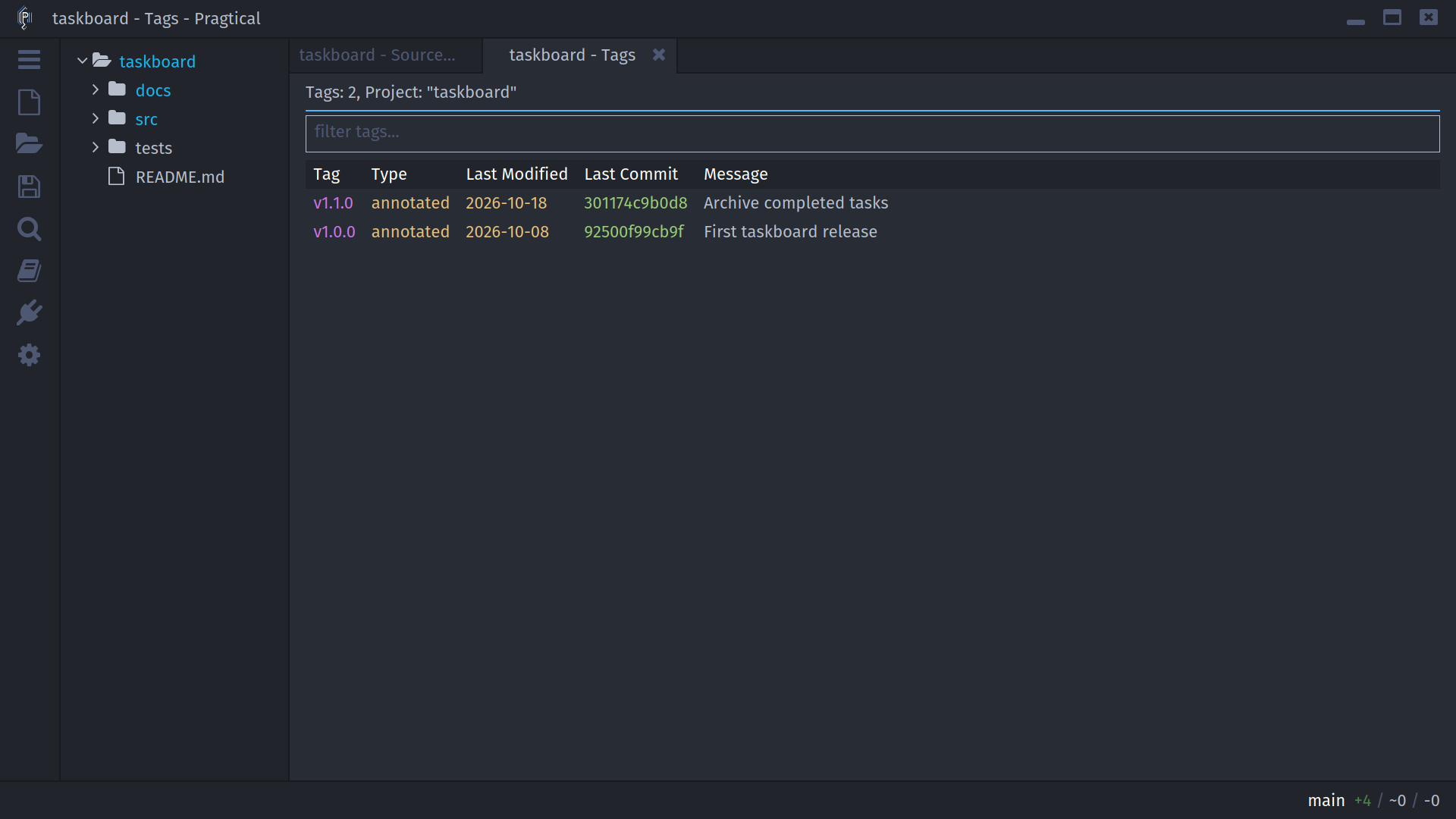
Run scm:view-tags, or choose Manage... from workbench Tags. The table
includes the name, date, commit, and message. The context menu supports
history, changes diff, checkout, copying the commit hash, creation, editing,
deletion, and refresh.
Create a Tag
Run scm:create-tag or choose Create Tag:
- Enter the tag name.
- Filter and select the target commit, not a branch name.
- For an annotated Git tag, enable Annotated tag and enter its message.
- Choose Create.
The commit picker uses the backend's default history: the current Git HEAD
history, or Fossil's repository timeline. Filter the returned commit rows to
find the target; this dialog does not provide a separate branch selector.
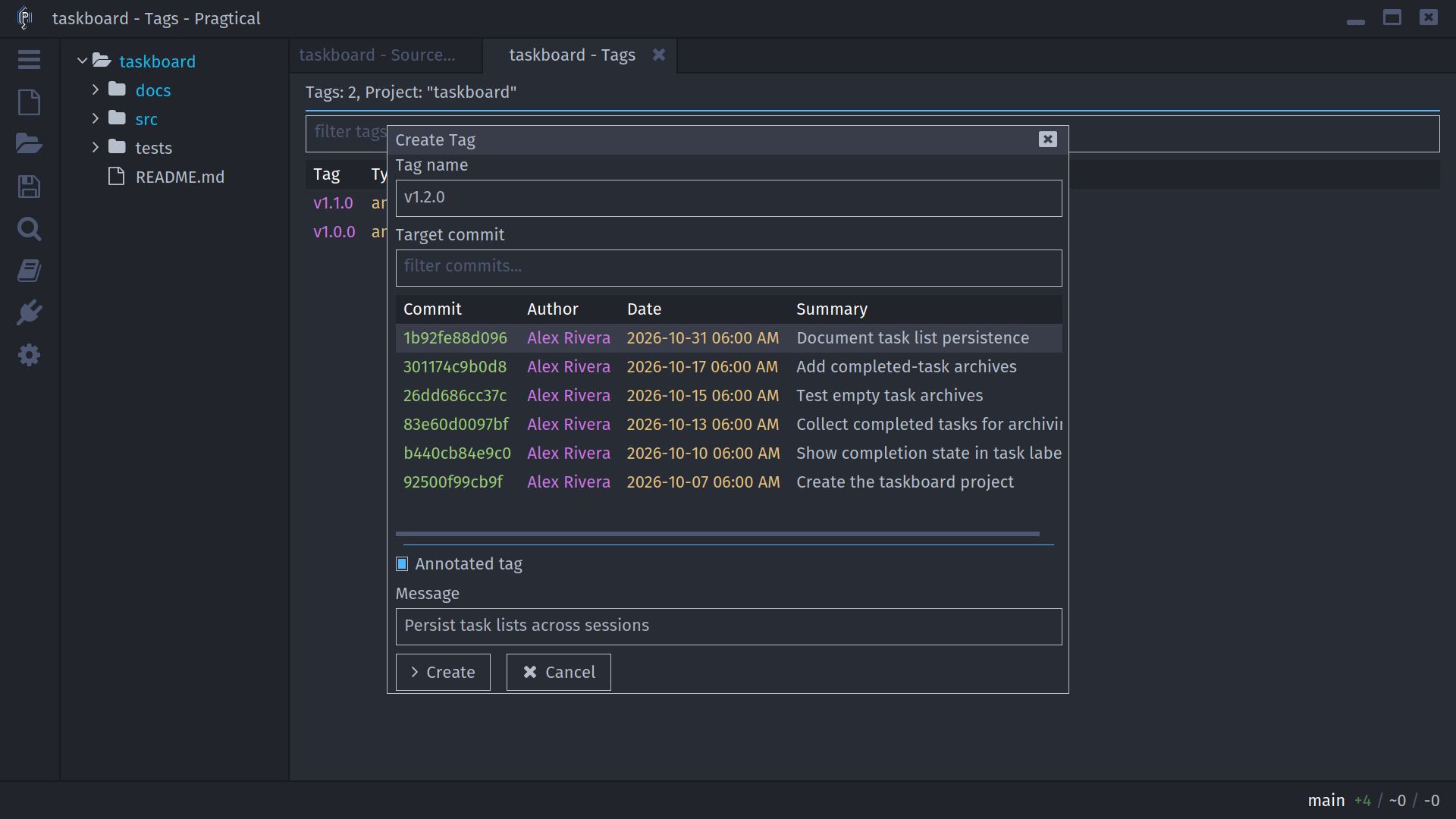
Git supports lightweight and annotated tags. Fossil uses its native tag value for the applicable message; it does not create a Git annotated-tag object. Creating a local tag does not publish it automatically.
Edit or Delete a Tag
Edit Tag reopens the commit picker with the existing name and details. Change its target commit and applicable annotation/message fields, then choose Update. This updates that tag; it is not a rename workflow.
Git replaces the local tag ref. Fossil cancels the old assignment and adds the new one; that history remains recorded. If the second Fossil operation fails, SCM reports that cancellation succeeded but recreation failed, so inspect the tag state before retrying.
Delete Tag asks for confirmation and removes the local tag/assignment using the backend's semantics. It does not delete a remote Git tag. A subsequent fetch can restore a tag that still exists on the remote.
Moving or deleting a published tag does not update everyone else's clone.
Coordinate with collaborators and use the explicit remote tag actions when
publication must change. Checking out a Git tag normally detaches HEAD;
create a branch if you want new commits to have a branch name.