Repository Tools
Open scm:repository-tools or choose Tools... in the workbench. The view
selector and Repository Actions menu show tools applicable to the backend.
Remotes and incoming/outgoing work are covered in
Remotes and Synchronization.
Save and Apply Stashes
Choose Stash... in the workbench to save pending tracked changes and restore the working tree. Enter a descriptive message so you can recognize the snapshot later. Git additionally offers Include untracked files; Fossil stashes tracked checkout changes and does not offer that option.
Open Stashes, select an entry, and inspect its patch before applying it.
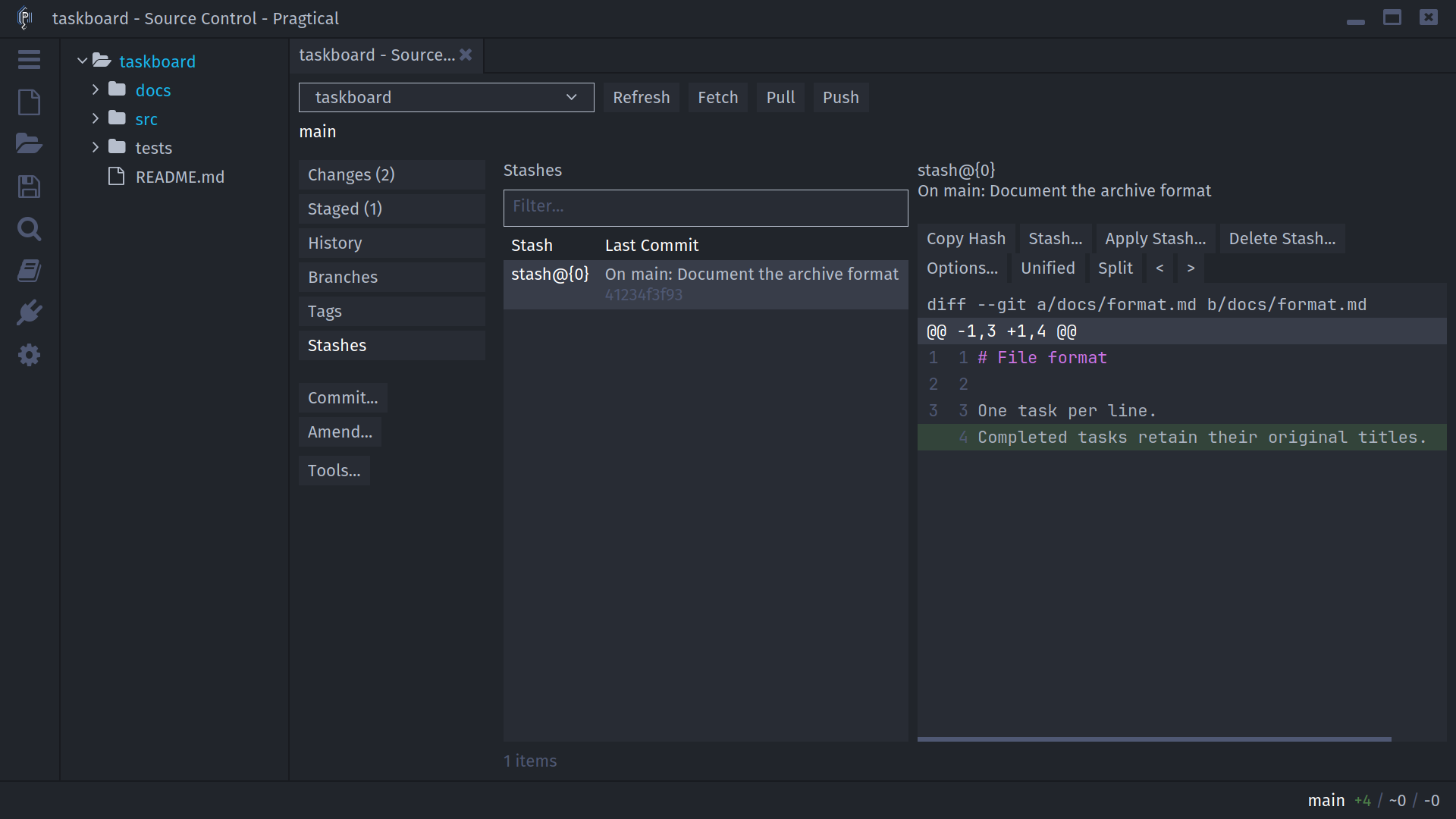
Apply Stash... applies the saved changes but retains the stash. Git can optionally Restore staged changes as staged to restore the saved index state. Without that option, do not assume the original staging selection is restored. Fossil has no index and does not show that control.
Delete Stash... is a separate confirmed action. Only delete the saved copy once you have verified that the applied work is present and correct. Applying a stash can conflict; resolve the resulting files before other mutations.
Checkout and rebase can offer to stash existing work first. This saves the work; it is not an automatic stash-pop operation after switching branches.
Search History
Choose Repository Actions > Search history.... Unlike filtering the workbench's loaded list, this asks the backend to search repository history before applying the result limit.
The dialog accepts an author, commit-message text, repository-relative path,
and an optional branch/tag target. Git also accepts Changed text (regular
expression), using its native -G history search for patches whose added or
removed lines match the expression.
For example, search message text for archive, restrict the path to
src/tasks.lua, or restrict the target to a feature branch. Author/message
searches and changed-text expressions have different semantics; do not put
workbench author: or path: prefixes into the dialog's separate fields.
Results appear in Search Results with commit previews and hash copying. The backend query is bounded to 200 results. Git uses native log filters; Fossil uses read-only repository queries and does not expose the Git-only changed-text field.
Git Worktrees
Choose Worktrees to inspect additional working directories attached to the repository. Select a row and Open to add that worktree as a Pragtical project. Its files and checkout are separate from the current worktree.
To create one, choose Repository Actions > Add worktree...:
- Browse or type the New worktree directory.
- Select an Existing branch / base branch.
- Optionally enter a New branch name to create it from that base.
- Choose Add.
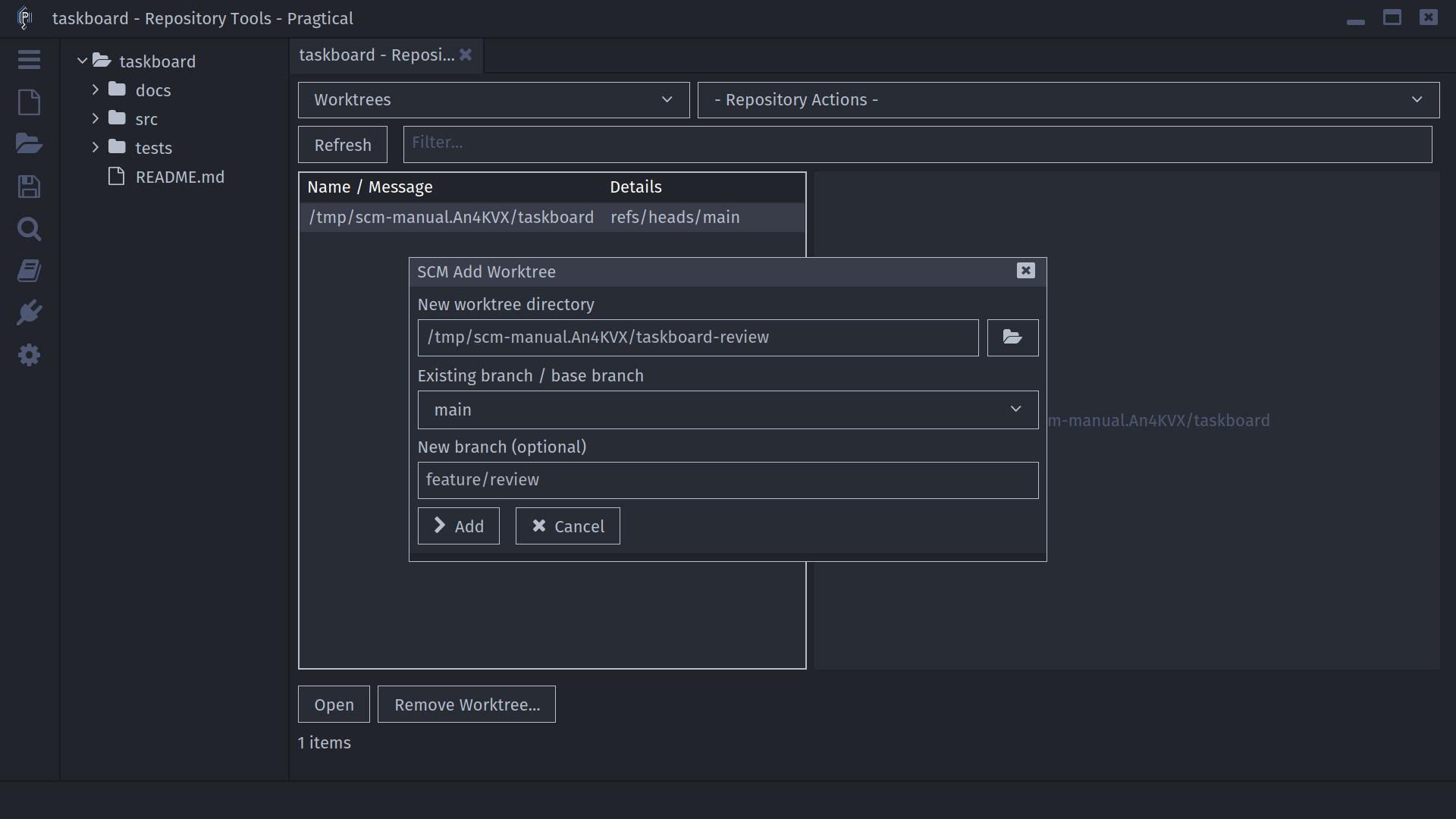
The directory field is editable, so it can name a directory that does not yet exist; Git creates it when appropriate. Browsing uses Pragtical's command view unless Use System File Picker is enabled. Selecting an existing branch is subject to Git's restriction against checking out the same branch in multiple worktrees.
Remove Worktree... asks for confirmation and uses Git's normal safety checks rather than forcing removal of dirty work. Inspect the worktree and preserve pending files before removing it. Fossil does not offer this Git worktree manager.
Git Submodules
Choose Submodules to inspect registered submodules. Open adds an existing submodule directory as another editor project. Initialize / Update initializes and updates submodules recursively using Git's normal submodule behavior.
Review the parent repository's recorded submodule revision before updating or committing changes. Opening a submodule is not the same as committing its new revision in the parent repository.
Git LFS
The Git LFS view is available when git-lfs can be found. It lists the
repository's LFS file metadata. Use Download LFS Files to run the backend's
LFS pull operation; normal Git access and authentication must work.
This is not an LFS installation wizard or a general replacement for LFS's command-line administration. Missing LFS controls can simply mean the binary is unavailable to the editor.
Rewrite Local Git History
Choose Repository Actions > Rewrite local history... and select how many latest commits to review, from 1 to 100. The plan lists commits from oldest to newest. Use Up and Down to reorder them and choose an action per row:
| Action | Effect |
|---|---|
pick | Keep and replay the commit |
squash | Combine it with an earlier kept commit |
drop | Omit it from the rewritten sequence |
Choose Rewrite..., review the confirmation, and proceed only when the plan matches your intent. This replays history; it does not just change the table's display order. New commits have new hashes.
Before execution, SCM requires a clean, attached checkout, validates that the
range still matches, rejects merge commits and selected commits reachable
from known remote-tracking refs, and creates an scm-backup/... branch at
the original tip. The range cannot include the repository's root commit,
and the plan must retain at least one picked commit before a squash.
Fetch and review remote state before rewriting. SCM can check locally known remote refs, not every clone, deleted remote ref, or place a commit might have been shared. A backup branch preserves the original committed tip, not uncommitted files. Do not treat these checks as permission to rewrite shared history without coordination.
If replay stops on conflicts, use the workbench's rebase recovery actions. The backup branch name is logged. Inspect the rewritten history and run tests before pushing. Fossil does not offer this Git rewrite-plan workflow.