Commits and History
SCM's commit editor is a normal document-style view with message-specific highlighting, body wrapping, and commented repository status. History views connect each commit to its diff and related actions.
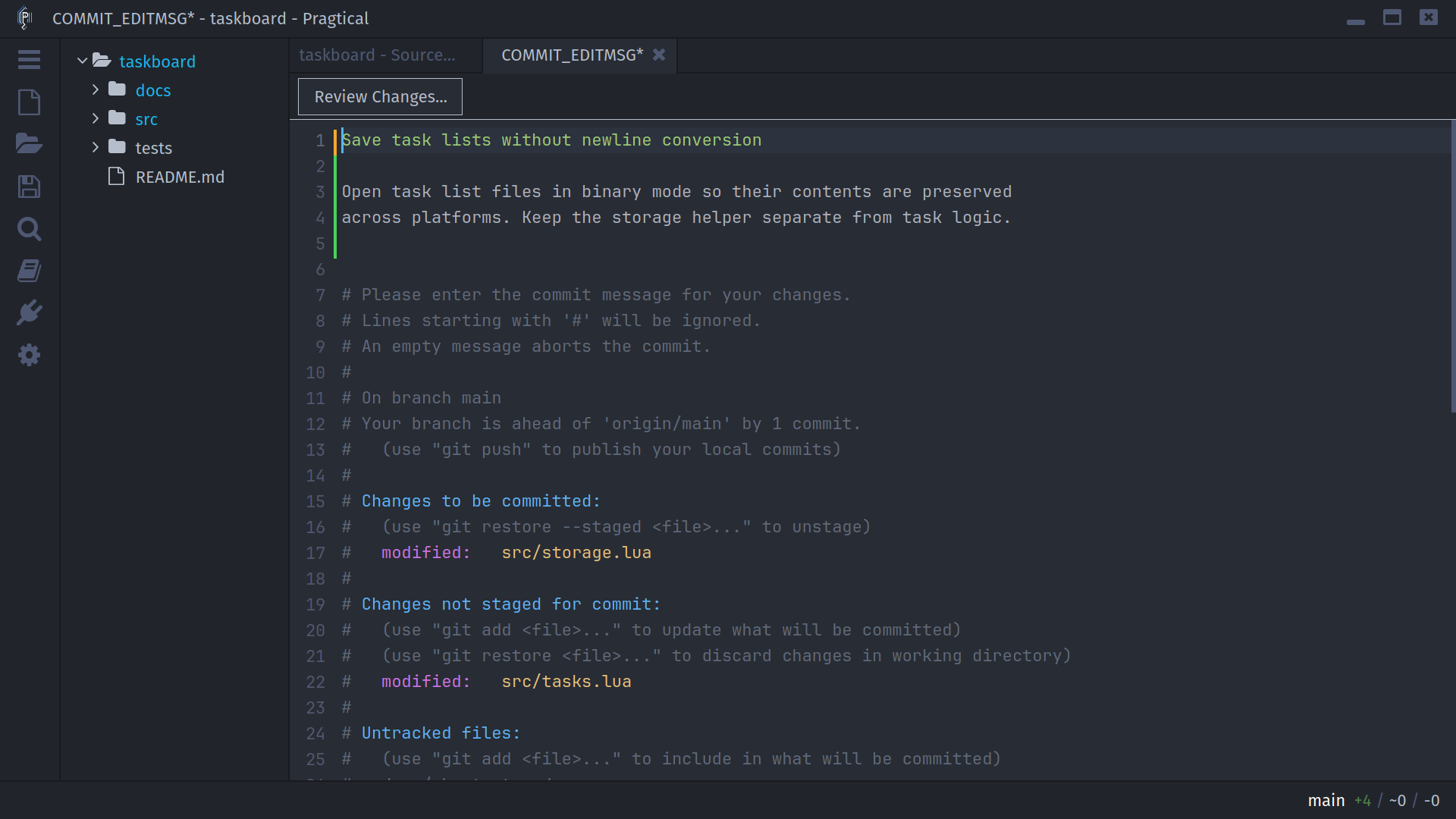
Create a Commit
Choose Commit... in the workbench, or run scm:new-commit. SCM checks for
committable changes before opening the editor:
- Git requires staged changes. Working-copy edits and untracked files alone do not make a commit ready.
- Fossil requires pending tracked changes. Add new files before committing.
Write a short subject on the first line, leave a blank line, and add a body when useful. The first line uses the theme's string color, with text beyond the recommended 50-character limit highlighted as an error. Body lines wrap at whitespace around the recommended 72-character width. Long words without a safe break are not split arbitrarily.
Lines beginning with #, including the status block, are excluded from the
final message. Indented comment lines are excluded too. An empty message is
rejected. Do not place required message content on a commented line.
Review Before Saving
Review Changes... opens a companion workbench while keeping the message editor open. For Git, it starts on Staged so you can inspect the index and adjust staging before returning to the message.
Save with ctrl+s, then choose Commit in the confirmation prompt. Cancelling the prompt leaves the message editor open. A successful commit closes it; a failed commit leaves it available so you can correct the problem and try again. Check the displayed error or Pragtical log for backend details.
Saving this special document requests a repository commit; it is not a normal Save As workflow for a message file. Closing an edited message without committing offers the appropriate confirmation.
Amend the Current Commit
Choose Amend..., run scm:amend-current-commit, or select the current commit
in standalone history and use Amend Current Commit. The editor starts with
the existing subject and body. Save and confirm Amend to proceed.
For Git, amend replaces the current commit and includes any staged changes. Its hash changes. For Fossil, this workflow amends the check-in comment; it does not fold pending file changes into the historical check-in.
The history action only applies to the current checkout commit, not an arbitrary older row or simply the first visible row after filtering.
Replacing a commit that other people already use can require coordination and a force-with-lease push. Use a new commit when rewriting published history is not appropriate. SCM does not automatically push an amended commit.
Browse Workbench History
Choose History in the workbench. Each row shows its subject, short hash, and available reference labels. Git also has a commit graph.
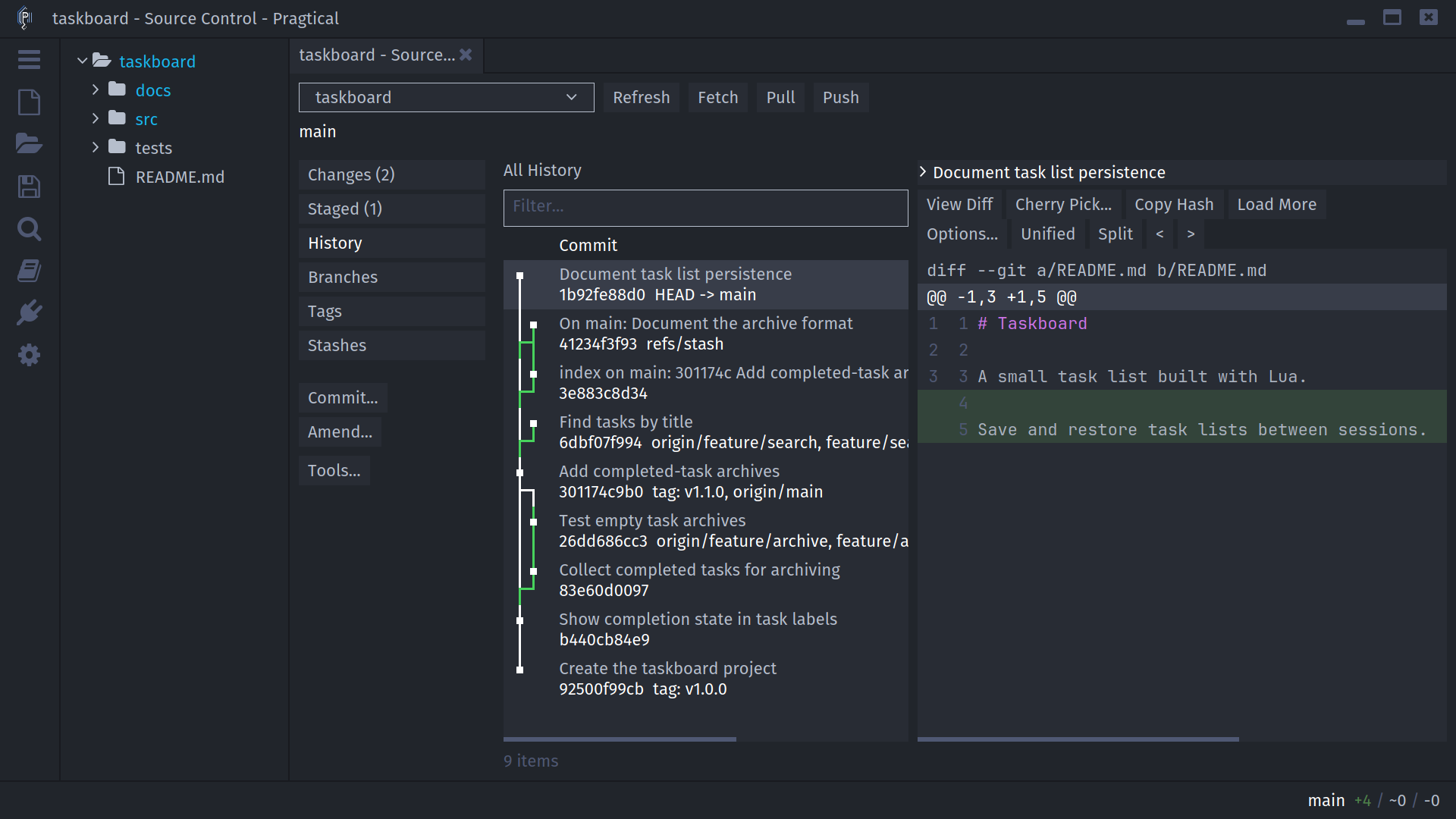
Single-click a row to preview its patch. Choose View Diff or double-click the commit to open the complete diff review. Expand the subject header to read the full commit message. Copy Hash copies the full hash, not only the abbreviated text displayed in the row.
History initially loads up to 200 commits. Load More increases that limit by 200. Filtering searches only loaded rows. Graph lanes are hidden while filtering so a reduced list does not suggest false parent relationships. Repository-wide Git history can include commits reachable through other refs, including saved stashes; choose branch history when you need a particular ref.
Use Search History to search beyond the loaded rows without repeatedly increasing the workbench limit.
Standalone and Path History
Run scm:commits-history, or right-click a project, directory, or file in the
tree and select View Commits History. With a tracked file active, the
command uses that file's history; use the project tree root for the full
project history.
The standalone table has Commit, Author, Date, and Summary columns, a text filter, and a context menu. Its Refresh action repeats the same query, retaining the selected path, branch, tag, or range context.
For file history, Compare With Current compares the historical file's contents with your working file. View Diff instead shows the selected commit's patch. Branch and tag history are available from their respective lists.
Cherry-Pick a Commit
Use Cherry Pick... in Workbench History, or Cherry Pick Commit in the standalone history context menu. Confirm the destination repository and commit. The selected commit's changes are applied to the current checkout.
For Git, this uses its native cherry-pick operation. For Fossil, SCM applies the
selected check-in and creates a commit with the original message and a
Cherry-picked-from: reference. This is not a preview-only action.
Start with a clean checkout and inspect the destination branch. If the operation conflicts, use Conflicts and Recovery before attempting another repository operation.
Inspect Blame
Toggle blame with scm:toggle-blame or ctrl+alt+b. The current line's
commit details appear in a resizable pane below the document, without moving
typing focus out of the editor. Move the caret to inspect another line.
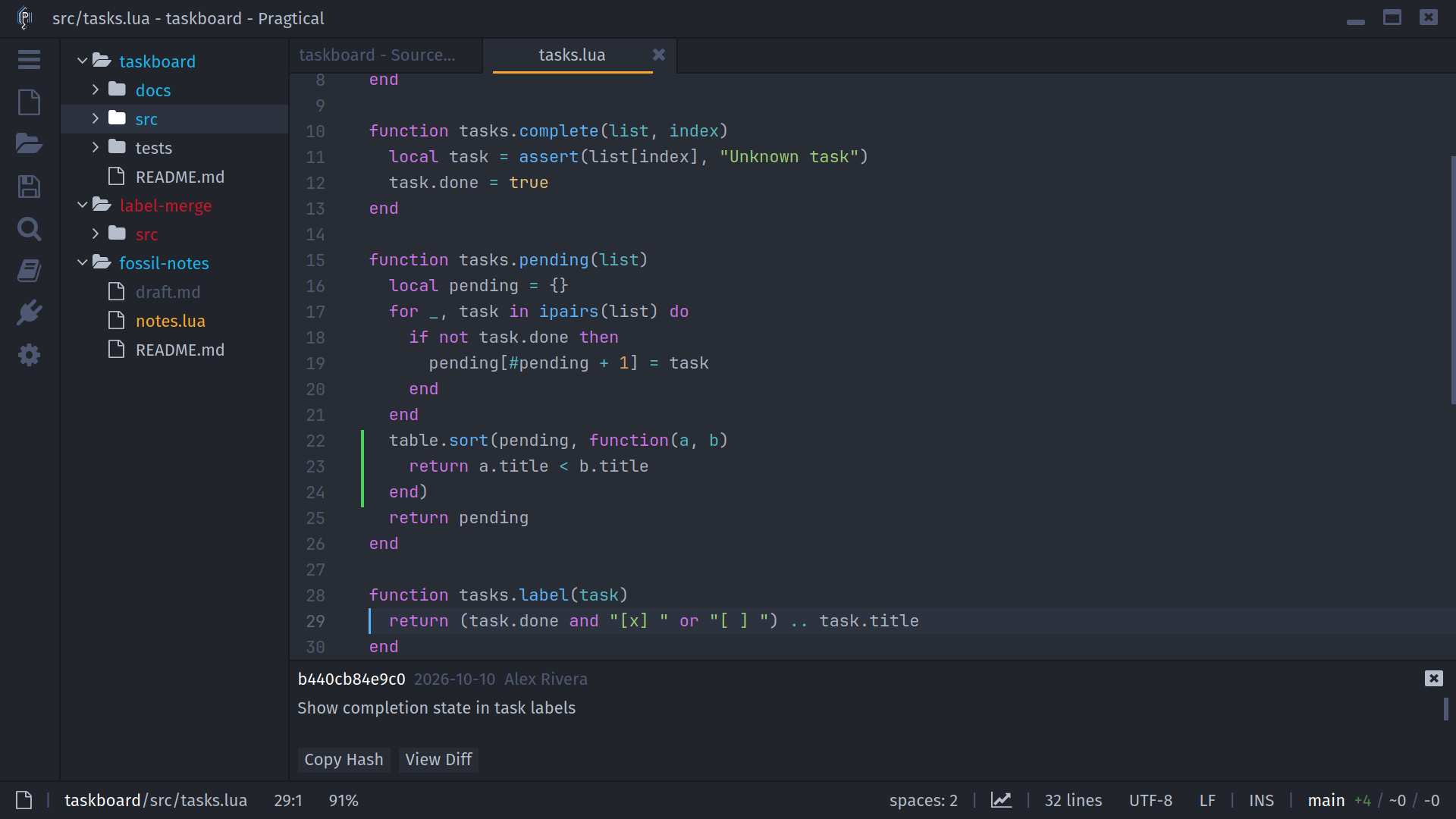
Choose Copy Hash or View Diff in the pane. The latter opens the commit's
complete patch, which can include other files. alt+b also invokes
scm:view-blame-diff in the current document context.
Close the details with its close button, or toggle blame off. Newly inserted or otherwise uncommitted lines may not have a historical commit to display. Choose Floating Popup instead of Bottom Pane in Blame Display settings when you prefer that presentation.