Conflicts and Recovery
Pull, merge, rebase, cherry-pick, and stash application can stop when changes cannot be combined automatically. SCM exposes the backend error and, for supported interrupted operations, offers recovery actions in the workbench.
Merge Branches
Run scm:merge-branches, choose Merge Branch... in a branch context menu,
or select Merge branches... in Repository Tools. Start with a clean
checkout; commit or stash pending changes first.
Select a Source branch, a Target branch, and a strategy, then confirm. The operation checks out the target before merging the source into it. Recheck your current branch after completion.
For Git, the strategies are Normal, Fast-forward only, Prefer target changes, and Prefer source changes. The preference choices affect conflicting portions; they are not a substitute for reviewing the result.
Fossil offers Normal and Integrate and close source. A Fossil merge produces pending checkout changes and must be committed separately. Integrate also requests closure of the source branch as part of that workflow.
Recognize an Interrupted Operation
The workbench shows an operation banner for supported Git merge, rebase, cherry-pick, and revert states. Conflicted files are marked distinctly in the changes list and tree; the status bar can also show a conflict count.
Do not start another pull, rebase, or cherry-pick over an unresolved operation. Inspect the existing operation and decide whether to complete or abort it. After using a command-line tool outside Pragtical, Refresh the workbench to obtain the current state.
Resolve a File
Select a conflicted file in Changes and choose Resolve.... The conflict editor presents available BASE, OURS, and THEIRS source versions above an editable result. Narrow layouts show one selectable source at a time.
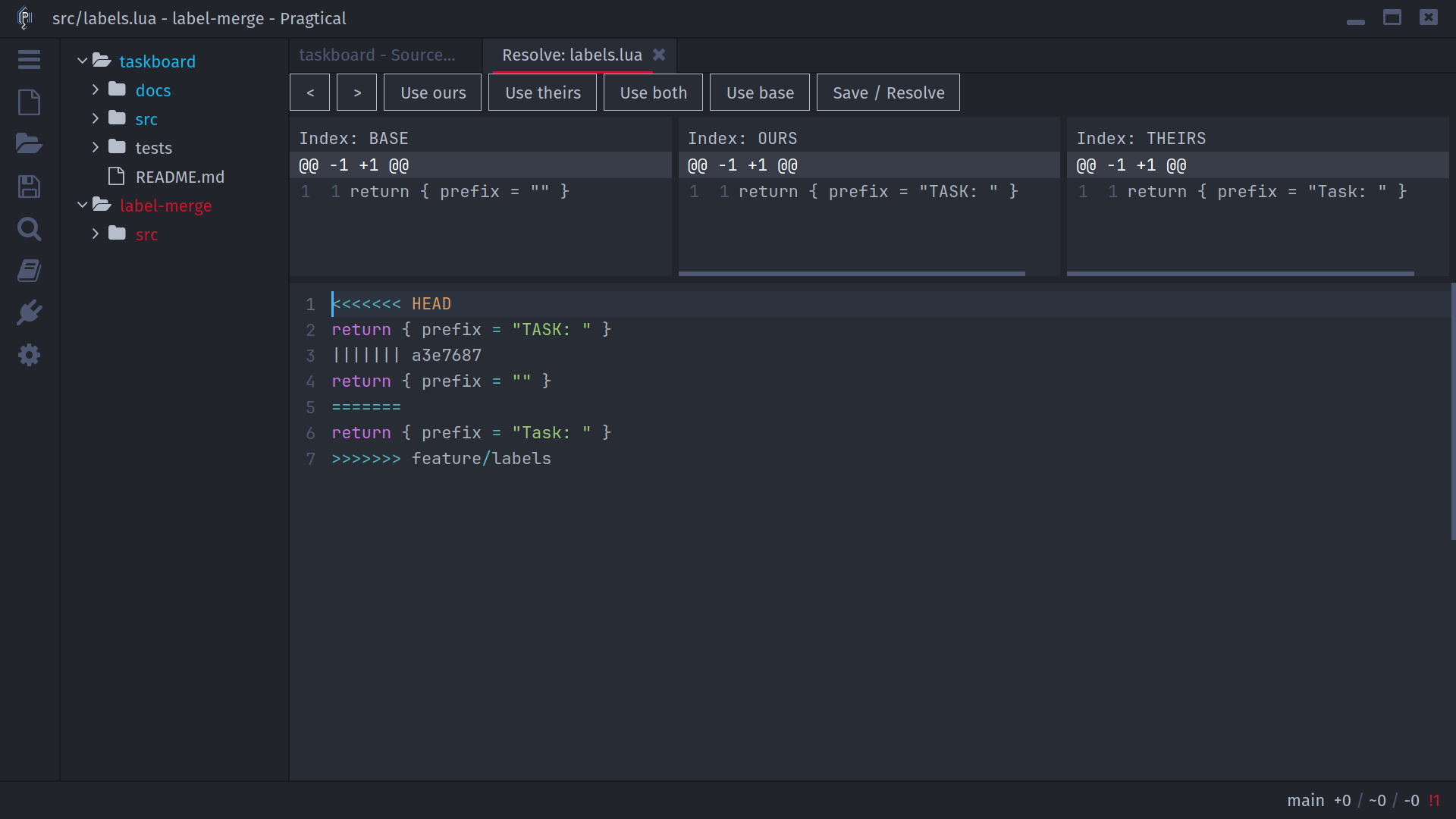
The current source-pane implementation can show only the first line of a multi-line source version. The editable result still contains the full file. When you need missing source context, inspect the versions with the native SCM or a separate file comparison rather than assuming the preview is complete.
Use the arrow buttons to move between conflict blocks. For the current block:
| Action | Result |
|---|---|
| Use ours | Keep the block's current-side content |
| Use theirs | Keep the incoming-side content |
| Use both | Keep both sets of content for further editing |
| Use base | Restore the base section when present in the conflict block |
You can edit the result directly after choosing a side. Use both often needs cleanup to produce valid code. A Use base action needs a base section in the marker block; merely having a base preview does not add that section to ordinary two-way conflict markers.
During a normal merge, the target checkout is generally ours and the source is theirs. During a Git rebase, ours is the new base and theirs is the commit being replayed. Read the source panes and resulting code rather than choosing by the labels alone.
Choose Save / Resolve when the entire file is correct. SCM refuses to mark it resolved while recognized conflict markers remain. On Git, the action saves and stages the resolved file. On Fossil, it saves the checkout file without creating a Git-style index entry.
Continue, Skip, or Abort
Return to the workbench after resolving all affected files:
- Continue resumes the interrupted Git operation. Resolve and stage every required file first. A multi-commit rebase or cherry-pick sequence can stop again at the next conflicting commit.
- Skip... is available for applicable replay operations. It omits the current commit rather than preserving its changes, so use it deliberately.
- Abort... asks for confirmation before asking Git to abandon the operation. Uncommitted resolution work can be lost.
Refresh and inspect the final diff, branch, and history. Run your project's tests before pushing an integration or resolution.
Fossil Recovery
Fossil does not have Git's sequence of continue/skip commands. Its workbench uses Commit... when a merge/update needs to be recorded, and Undo... for the supported rollback path.
Fossil undo is one-level undo of the last undoable command. If another undoable command ran after the merge, it may no longer undo the merge you intended. Read the warning, inspect the checkout, and keep a backup of work you cannot afford to lose.
SCM's Fossil merge requests retained merge files for the source previews. For externally started operations where those files are absent, the editor can still open the marked result for manual resolution, but it may not be able to show all three original source panes.
Other Failures
A failed command is not always a content conflict. Authentication failures, missing upstreams, stale staging patches, unsupported strategies, hooks, or filesystem permissions can also stop an operation. Read the full error dialog and Pragtical log. Resolve the actual cause before retrying; a successful fetch alone does not resolve an interrupted merge.