Remotes and Synchronization
Use Fetch, Pull, and Push in the workbench for routine synchronization. Tools... opens more specific remote operations and incoming/outgoing history. Local Refresh does not contact a server.
Manage Remote URLs
Run scm:manage-remotes, or choose Remotes in Repository Tools. Select a
remote to inspect its fetch and push URLs.
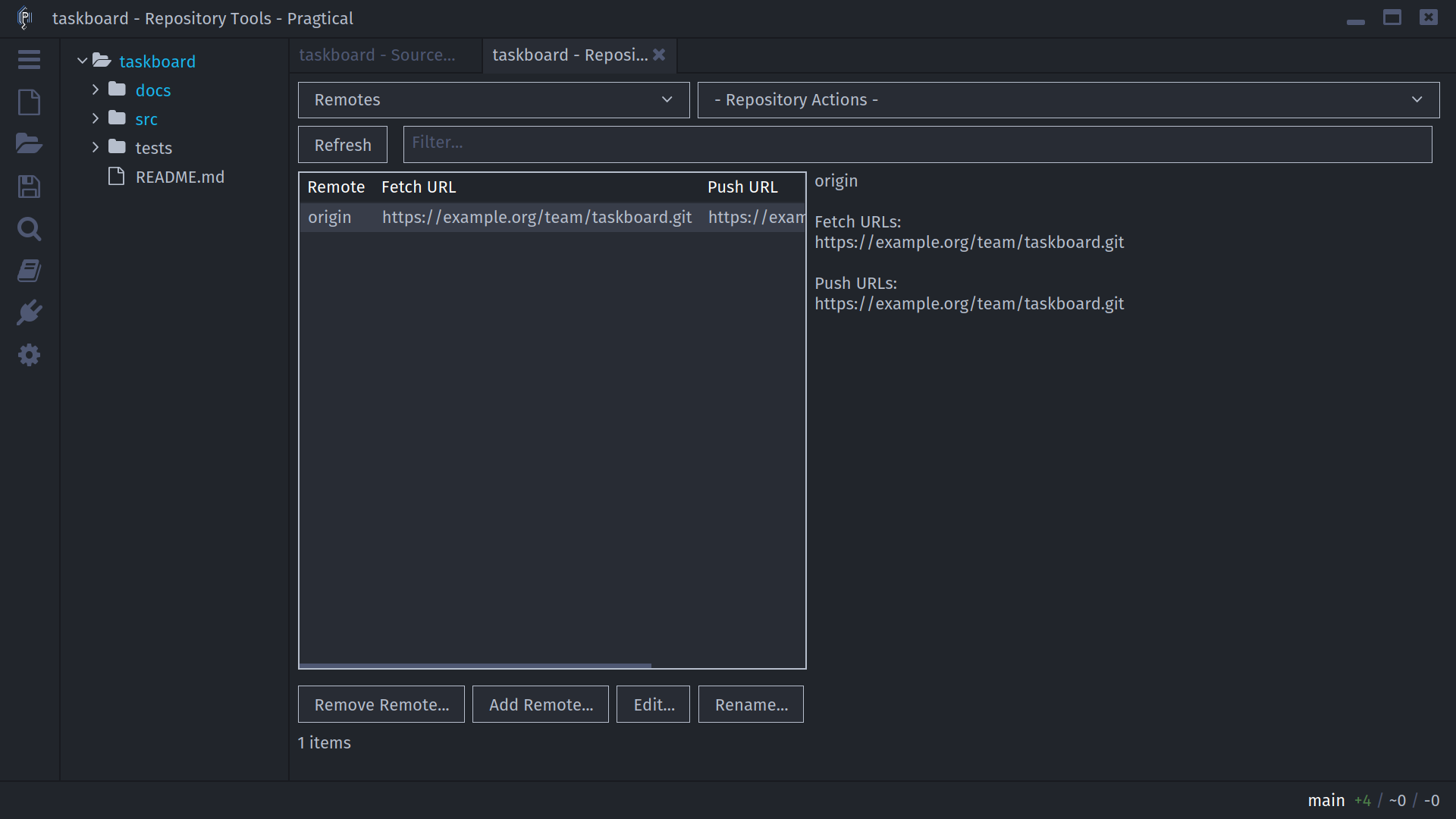
Add Remote... collects a name and URL. Edit... changes the selected remote's URL. For Git, Rename... changes its local name, and an optional push URL can differ from the fetch URL. Clearing the push-URL field restores Git's fetch-URL fallback. Editing the first configured URL preserves any additional URLs.
For Fossil, Set Default selects the named remote used for synchronization. Removing the default warns that it disables autosync. Fossil does not expose Git-style remote renaming or separate push URLs through these controls.
Remove Remote... removes local remote configuration and applicable tracking refs. It does not delete the repository hosted at that URL. This differs from deleting a particular remote branch or tag.
Fetch References
Choose Fetch in the workbench or Refresh From Remote in the branches or tags context menu. Git fetch updates remote-tracking information and tags without merging into the working branch.
When using Refresh From Remote, backends that support pruning ask whether locally cached remote branches and tags deleted upstream should also be removed. Git supports this; Fossil does not present the pruning question.
For Git, SCM fetches tags with force enabled. With pruning requested, it also
passes --prune and --prune-tags. Consequently:
- A tag deleted only locally can reappear when it still exists remotely.
- A changed local tag can be updated to match the fetched remote.
- Pruning can remove local tags absent from the remote. Preserve local-only tags you need before accepting that option.
Git uses the current branch's upstream remote when available, falls back to
origin, and otherwise uses the backend's default fetch behavior. This is not
a fetch-all-remotes button.
Fossil synchronizes repository artifacts rather than Git remote-tracking branches. Fetching data does not imply the current checkout files have moved to another check-in.
Inspect Incoming and Outgoing Work
Open Tools... and select Incoming or Outgoing. For Git, these views compare the current checkout with its configured upstream. Fetch before relying on the displayed remote state.
Select a commit to preview its diff and message, or copy its hash. Configure an upstream first if the branch has none. Fossil explains its artifact-sync model instead of displaying misleading Git-style ahead/behind counts.
Pull and Choose a Strategy
Pull uses the backend's configured synchronization behavior. When Git reports divergent branches without a configured reconciliation strategy, SCM offers:
| Choice | Effect |
|---|---|
| Merge | Integrate the fetched history with a merge when needed |
| Rebase | Replay local commits on the fetched upstream history |
| Fast-forward Only | Advance only when no merge or replay is necessary; otherwise fail |
Enable Remember for this repository to write the selected Git pull configuration locally. Without it, the selection applies to the retry only. SCM does not change your global Git configuration.
Choosing a strategy does not resolve content conflicts automatically. If the operation stops, continue with Conflicts and Recovery. Rebase changes commit identity; choose it deliberately for shared work.
Fossil's Pull transfers artifacts into the local repository; it is not a Git-style fetch-and-merge. Use branch checkout/update or a deliberate merge to bring the desired check-in into the working files. Its pull does not use the Git strategy dialog.
Push Changes
Choose Push in the workbench or run scm:push. For Git, a dialog selects
the current Local branch, its default Remote, and Destination branch.
Defaults respect per-branch push remotes, remote.pushDefault, and Git's
resolved push mapping, with the configured upstream branch as a fallback.
Without either mapping, the destination defaults to the local branch name.
No remote connection is needed to open the dialog.
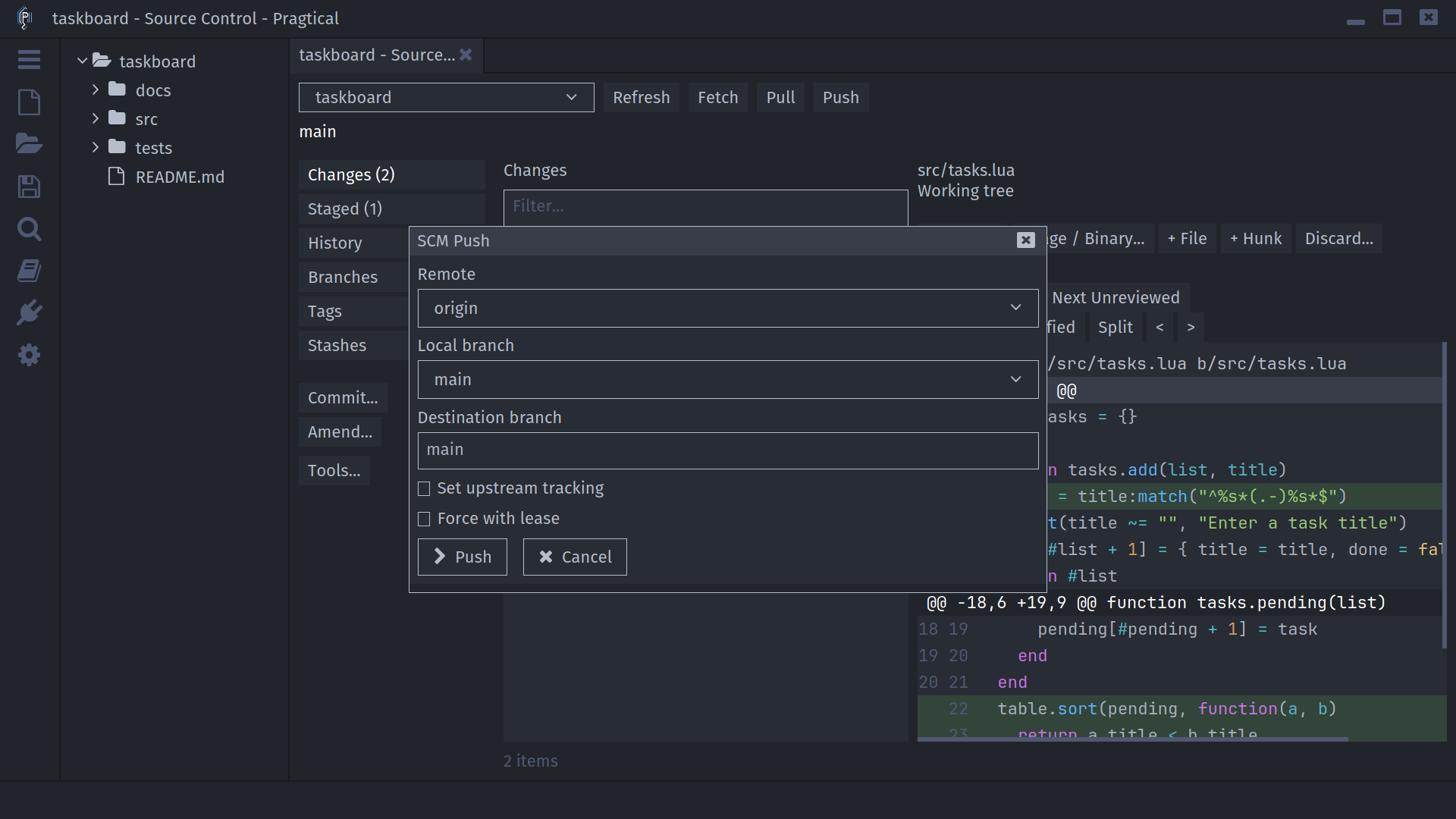
Select another remote or local branch, or type a different destination branch.
Keeping both branch names the same is equivalent to git push remote branch.
Changing the destination publishes the selected local branch under that name,
without checking it out. Enable Set upstream tracking to remember that
remote branch for later operations; it is initially enabled for untracked local
branches. A detached checkout requires explicitly selecting a local branch.
Force with lease permits rewriting the selected remote branch, but asks for
confirmation and pins its expected tip before pushing. Fetch first to update
the local remote-tracking information. It does not use unconditional --force.
Failures show the backend error and keep the form open for correction or retry;
cancel the dialog to leave without pushing.
Fossil retains its normal repository-wide push operation, without Git's branch-selection dialog.
Push or Delete a Specific Ref
Git Repository Tools offers Push branch..., Push tag..., Delete remote branch..., and Delete remote tag... under Repository Actions. Branch and tag list context menus expose the corresponding actions too.
Select the remote and ref. Branch push can enable Set upstream tracking. Deletion is a separate confirmed action; deleting a local ref alone never performs it. Fossil does not offer individual Git-style remote-ref operations.
Force with Lease
Enable Force with lease only when intentionally replacing a remote ref. SCM obtains an expected tip and displays it before confirmation. For branches, this comes from the local remote-tracking ref; fetch first so it is current. For tags, SCM queries the remote ref. The push is tied to that value, so another writer changing the ref before the push causes the lease check to fail rather than silently overwriting it.
A lease protects against that race; it does not establish that rewriting the history is appropriate or harmless to collaborators.
Authentication
Git runs without terminal password prompts. SCM permits Git Credential Manager
and configured askpass helpers to use their graphical flow. Git's environment
uses GCM_INTERACTIVE=auto, GIT_TERMINAL_PROMPT=0, and
SSH_ASKPASS_REQUIRE=prefer. This does not install an askpass program or a
credential manager. Configure the helper and SSH agent appropriate to your
Git installation when authentication is required.
For Fossil, SCM can ask for a username and masked password after an authentication-required response. The username is prepopulated from the saved remote when available, or from the previous entry for that repository. SCM retries the operation with those credentials. It does not provide a password manager or a Remember password option in this dialog.
Avoid placing passwords in URLs you intend to show in screenshots, logs, or shared configuration. A missing graphical Git prompt is a credential-helper configuration problem, not a reason to enter a password in the commit editor.
Fetch and push failures display the backend error; pull failures can also be reported in the Pragtical log. Check the remote URL, network access, and helper configuration before retrying. For stateful failures, inspect the workbench before starting another operation.