Repository Workbench
The workbench combines a repository selector, change and history lists, and an
inline diff preview. Open it with scm:workbench or
ctrl+shift+g.
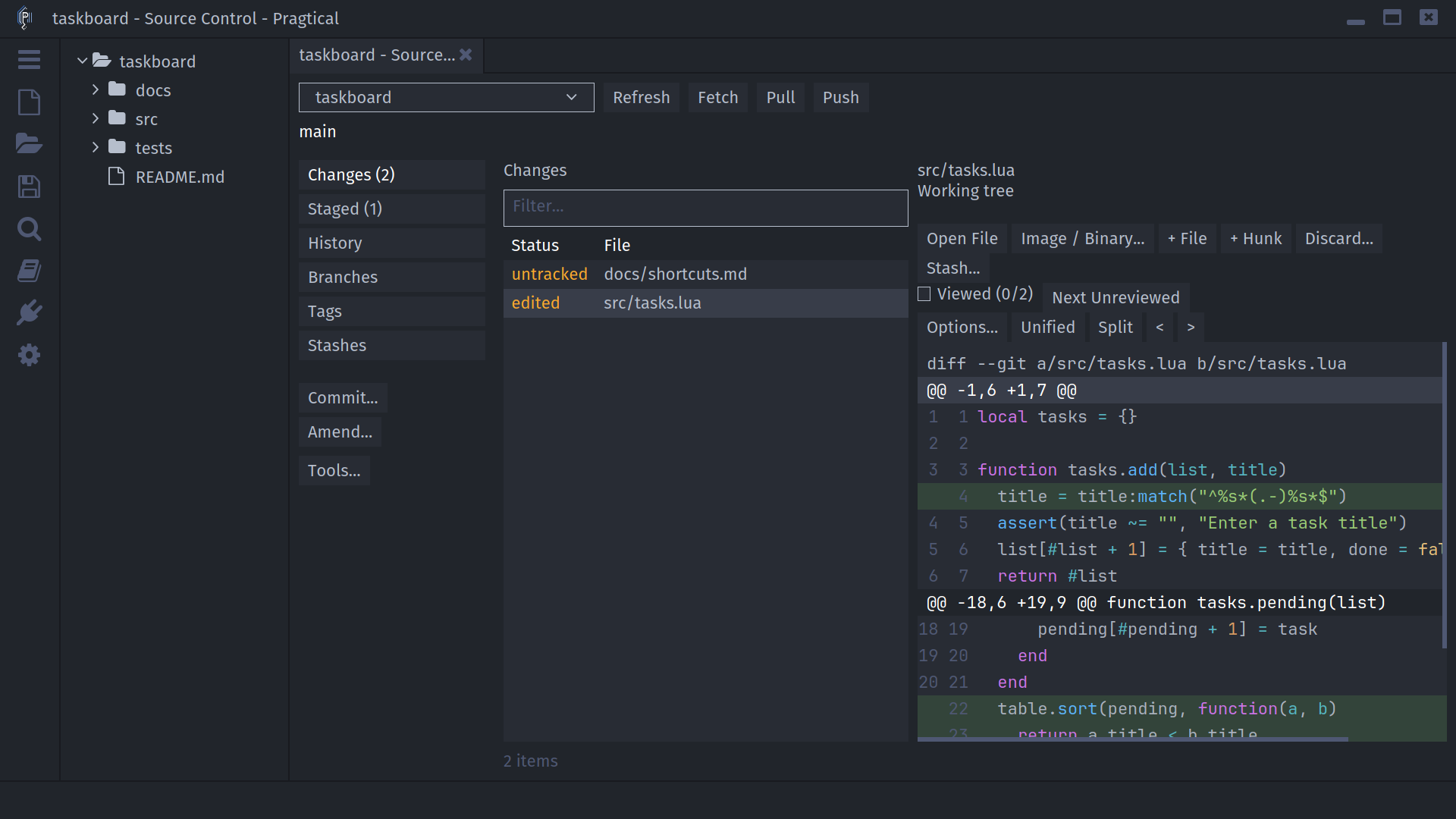
Choose a Repository and View
The top row contains the repository selector and Refresh, Fetch, Pull, and Push. The current branch appears below it.
The navigation area switches between:
| View | Contents |
|---|---|
| Changes | Unstaged Git changes, or pending Fossil changes, plus untracked files |
| Staged | Git's index: the changes prepared for the next commit |
| History | Bounded commit history, with a graph for Git |
| Branches | Branch tips and an inline commit preview |
| Tags | Tags and an inline commit preview |
| Stashes | Saved work-in-progress snapshots |
Commit..., Amend..., and Tools... open the corresponding workflows. The workbench reuses its tab when you open it again for the same repository. Narrow panes use a view selector and stack the list above the preview.
Review Changed Files
Select a file to see its diff. Changes compares Git's working copy with the index; Staged compares the index with the committed version. A partially staged file appears in both lists, showing a different patch in each.
Open File opens the editable working copy. Image / Binary... compares image or binary versions. For tracked files, Discard... asks before restoring the working file. It is not the same as unstaging.
For an untracked file, choose Add to Repository to start tracking it. Git also stages it; Fossil records an added checkout file. Untracked text previews are limited to 1 MiB. A binary notice does not mean a file cannot be added.
Stage a File, Hunk, or Selected Lines
Git offers progressively smaller staging actions:
- + File stages the complete selected file change.
- Click inside a diff hunk and use + Hunk to stage only that hunk.
- Drag across changed diff lines and use + Lines to stage that selection.
The Staged view provides - File, - Hunk, and - Lines to remove changes from the index without discarding the working copy.
Partial staging is available for ordinary text modifications. Use whole-file actions for additions, deletions, renames, binary files, permission changes, and file-type changes. Disable Ignore whitespace changes before staging hunks or lines: a whitespace-filtered patch is not an exact index patch.
Editing a file after staging it does not update the staged copy. Review Staged immediately before committing. Unstaging preserves your edits; discarding can remove them.
Track, Untrack, and Rename Paths
The tree context menu also exposes Add to Repo, Remove from Repo, staging, and restore actions for applicable paths. Git's remove-from-tracking operation keeps the working file; it is not a discard command. Files can become untracked again after their removal is recorded.
Editor rename operations use the backend's move support when applicable. Review the resulting status and commit it like any other path change. Git still determines recorded rename relationships from file content; Fossil's committed rename display can differ from its checkout rename display.
Filter and Sort
Workbench filters support plain terms, quoted phrases, field prefixes, and exclusions. Terms narrow the currently loaded list; they do not retrieve more repository history.
path:src status:edited
author:"Alex Rivera" -message:wip
ref:feature hash:1b92
message:"task list"
Fields include author:, message:, hash:, ref:, path:, and status:.
Use fields appropriate to the current view. For example, a file-change row
has a path and status, while a history row has a hash, author, and message.
The standalone history, branch, and tag lists use their own text filters;
do not assume that they support this field syntax.
In Options..., changed files can be sorted by path, status, or filesystem modification time. This does not change repository history or commit order. For history beyond the loaded entries, use Load More or the repository-side history search.
Track Review Progress
Check Viewed after reviewing a pending file. Next Unreviewed moves to another file without a matching mark. A file's mark is invalidated if a newly loaded diff differs from the version you reviewed.
Viewed marks are local to the editor session. They do not stage files, create commits, or submit reviews to GitHub or another hosting service.
Tree, Gutter, Tabs, and Status Bar
SCM complements the workbench with file-status colors in the project tree, document gutter markers, and optional colored indicators on document tabs. Tree colors summarize statuses such as added, edited, deleted, renamed, and untracked. Parent directories can reflect changes in their children.
The status bar shows the current branch and line counts:
main +12 / ~3 / -2
+ counts inserted lines, ~ counts modified lines, and - counts deleted
lines. Within a changed diff block, paired old/new lines count as modifications;
extra new or old lines count as insertions or deletions. These are line counts,
not file counts. An additional ! count indicates conflicted files. Use
ctrl+alt+[ and ctrl+alt+] to jump between changes in the
current document.
Refresh Behavior
Refresh or f5 reloads repository state without contacting a remote. Fetch is a separate operation; see Remotes and Synchronization.
SCM responds to existing editor and backend metadata notifications. External edits inside collapsed folders may not be detected immediately on every platform. If status looks stale after an external tool runs, use Refresh. SCM deliberately does not install watches throughout the entire working tree or continuously poll every file.