Getting Started
SCM uses the command-line Git and Fossil tools already installed on your computer. You only need the executable for the repositories you work with.
Requirements
- A current Pragtical installation with its bundled widget library.
- The SCM plugin and its
language_diffdependency. gitand/orfossilavailable in the editor'sPATH, or configured by absolute path in SCM settings.
The editor's built-in Diff Viewer also provides file-to-file comparisons, including comparisons between a historical file and your current copy. This is distinct from SCM's own advanced patch viewer.
Install the Plugin
Open Pragtical's Plugin Manager, search for SCM, and install Source Control Management. Alternatively, use the bundled package manager:
pragtical pm plugin install scm
Restart Pragtical after installation. If installing manually, the plugin folder
must be named scm and contain init.lua directly inside it:
USERDIR/
  plugins/
    scm/
      init.lua
      backend/
      ui/
See Managing Plugins for plugin locations, updates, and installation troubleshooting. The SCM plugin browser entry links to its source repository.
Open an Existing Repository
Open a Git working tree or a Fossil checkout as a Pragtical project. SCM detects the backend automatically. It does not require a remote connection to inspect local changes or history.
For Fossil, open the checkout directory, not the repository database file.
The database is usually a .fossil file; the checkout contains editable files
and .fslckout or _FOSSIL_ metadata.
Run scm:workbench from the command palette, or press
ctrl+shift+g. Other entry points are Tools > Source Control and
the project tree's Repository Workbench context-menu action.
With multiple projects open, choose the repository in the workbench's selector. Document commands generally use the active file's project; project commands fall back to the root project when appropriate.
Left-click the branch and change-count item in the status bar to open a fresh command palette filtered to Scm:. Right-click that item to open the current project diff. Commands that need a particular document, repository, or selected row are only available in the corresponding context.
Initialize a Repository
You can put an existing, non-versioned directory under source control:
- Open the directory as a project.
- Run
scm:initialize-repository, or use Initialize Repository in its tree context menu. - Select Git or Fossil and check the destination directory.
- Continue to the backend-specific settings and choose Initialize.
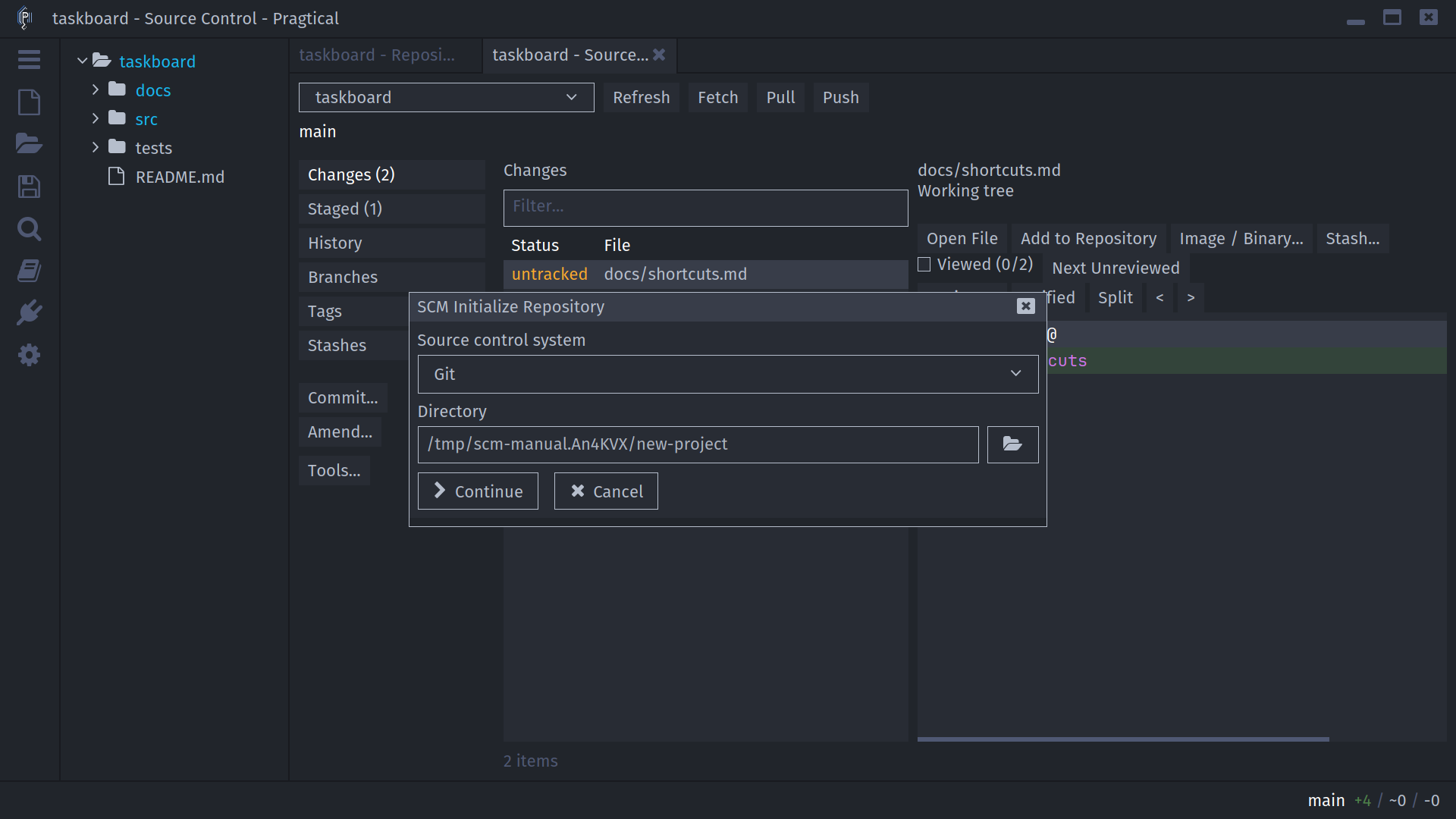
For Git, choose an initial branch name, such as main. For Fossil, choose a
new repository database filename and an administrator username. The directory
must already exist; its files are preserved and remain untracked until added.
Initialization does not make an initial commit or configure a remote.
SCM refuses to initialize an existing repository or a directory inside one. Git worktrees and bare repositories are also protected. Fossil repository database files are not overwritten. The destination is checked again when you submit the dialog.
Your First Commit
Git
- Save an edit to an existing tracked file.
- Open Changes in the workbench and select the file.
- Review the diff, then choose + File to stage it.
- Switch to Staged and confirm that the index contains the intended patch.
- Choose Commit..., enter a subject and optional body, then save the message with ctrl+s.
- Confirm Commit in the confirmation prompt.
A new, untracked file uses Add to Repository instead of + File. Git starts tracking and stages the file in the same operation.
Fossil
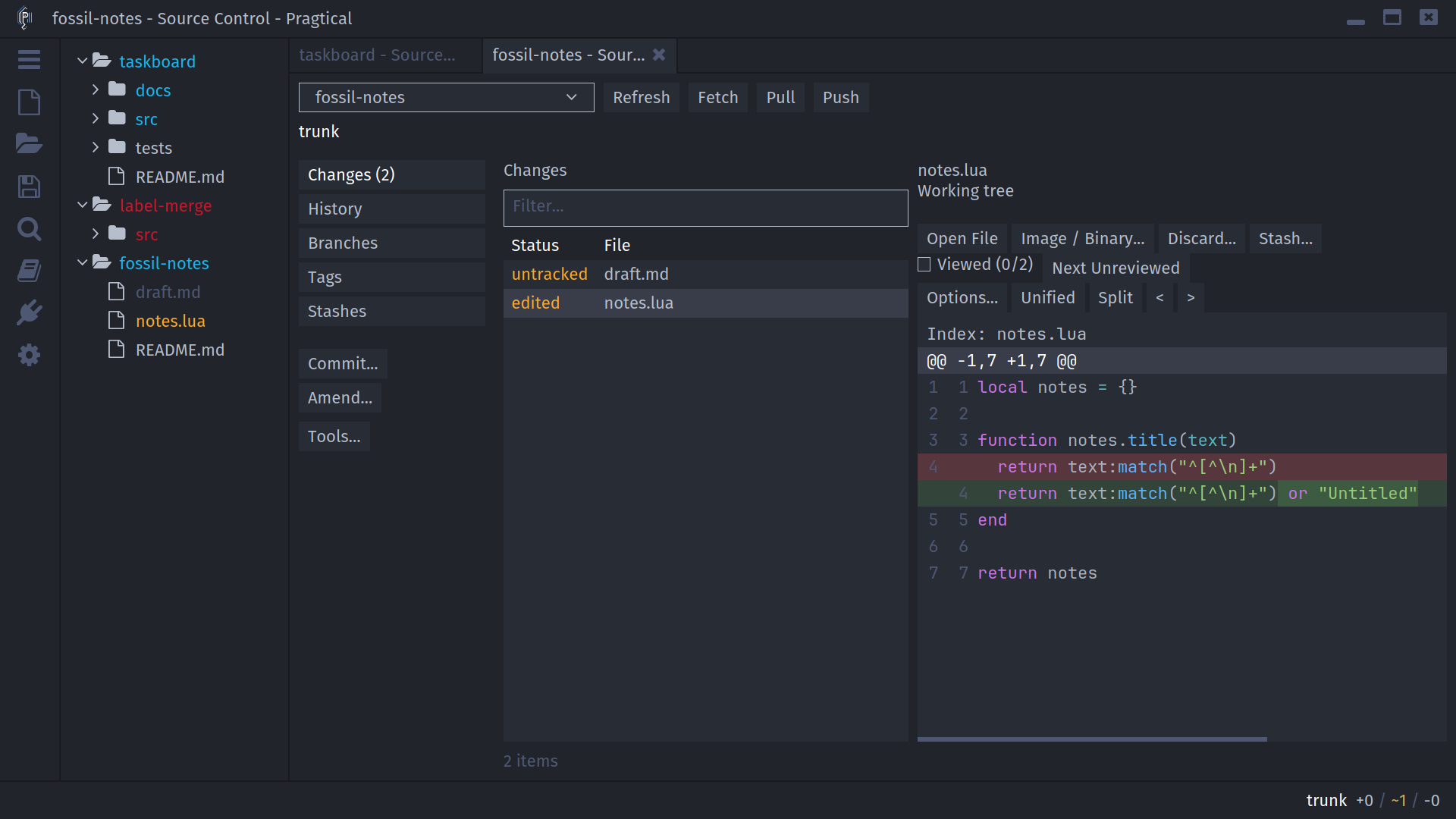
- Save edits to tracked files and inspect Changes.
- Select any untracked files you want to include and choose Add to Repository.
- Choose Commit..., write the message, save, and confirm Commit.
There is no Staged view for Fossil. The commit includes the checkout's pending tracked changes, not only the row selected in the workbench.
Continue with Repository Workbench for granular Git staging, or Commits and History for the commit editor and amend.