Diffs and Review
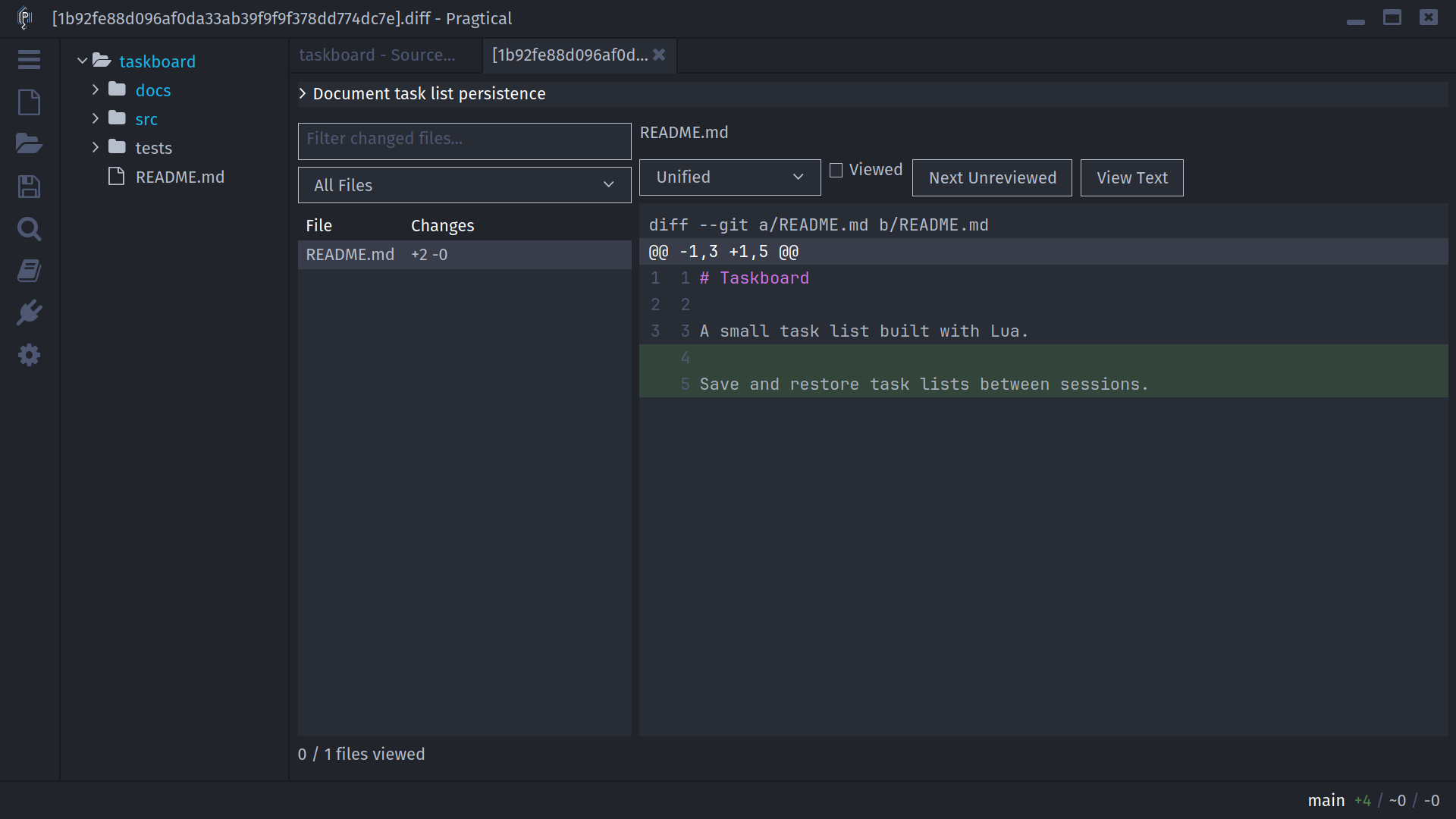
SCM has an inline workbench preview and a standalone Advanced diff viewer. The standalone viewer adds a changed-files list, file filtering, and review progress for an entire comparison. It is the default for SCM diff commands.
Open a Comparison
| Starting point | Action |
|---|---|
| Project | Run scm:global-diff, or right-click the SCM status item |
| Current document | Run scm:file-diff |
| Workbench History | Select a commit and choose View Diff, or double-click it |
| Standalone Commit History | Double-click a commit, or right-click and choose View Diff |
| Branches list | Right-click a branch and choose View Changes Diff |
| Tags list | Right-click a tag and choose View Changes Diff |
| Blame details | Choose View Diff for the displayed commit |
Single-clicking a commit in Workbench History only changes its inline preview. Use View Diff to open the full comparison in its own tab.
Comparison Direction
Branch and tag actions are not interchangeable with a commit's own patch:
- A Git branch diff uses
git diff current...selected: it shows changes from the merge base toward the selected branch. - A Git tag diff uses
git diff tag...current: it shows changes from their merge base toward the current branch. For an ancestor release tag, this is the work accumulated since that tag. - A Fossil branch diff uses Fossil's native
diff --branchbehavior, rather than a comparison against the current branch argument. - A Fossil tag diff compares directly from the tag to the current branch or checkout context.
The three-dot Git comparisons are not necessarily direct endpoint-to-endpoint diffs when histories diverge. They also do not list commits. Use View Commits Not On Current Branch to inspect commits unique to the selected branch.
Navigate Changed Files
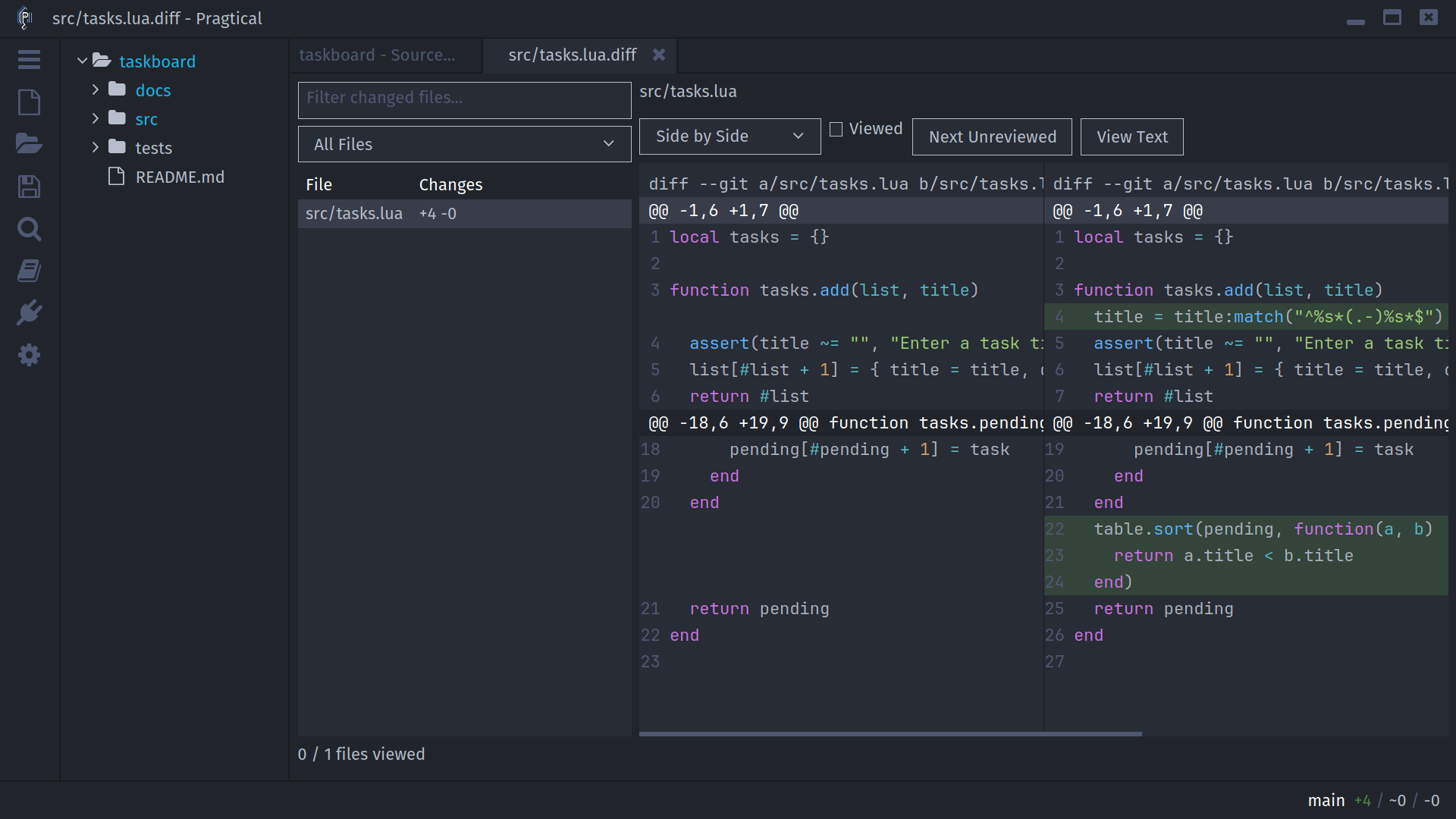
Select a file on the left to load its patch. Filter by filename, or choose All Files, Unreviewed, Viewed, or Binary. On narrow panes, changed-file navigation is presented as a selector instead of a wide table.
The list retains changes that have no ordinary text hunk: empty added or deleted files, binary changes, renames, copies, permissions, and file types. An empty patch area can therefore mean a metadata-only change, not a missing file.
Fossil requests complete contents for added and deleted files. Its committed renames can appear as an addition and a deletion. Git merge-commit diffs are shown against the first parent, rather than as a combined merge patch.
Unified and Side-by-Side Layouts
Unified shows old and new lines in one column. The line-number gutters identify the old and new positions. Side by Side separates the versions into aligned panes. Both layouts use the language's syntax highlighting and the editor's insertion and deletion colors.
The workbench exposes Unified and Split buttons. The advanced viewer has a layout selector. Long lines can be scrolled horizontally.
In the workbench, Options... controls context length, full-file context, ignored whitespace, and trailing-whitespace highlighting. The arrow buttons move between diff hunks. Hunk and selected-line staging are Git workbench actions, not operations on read-only historical comparisons.
Read a Commit's Subject and Body
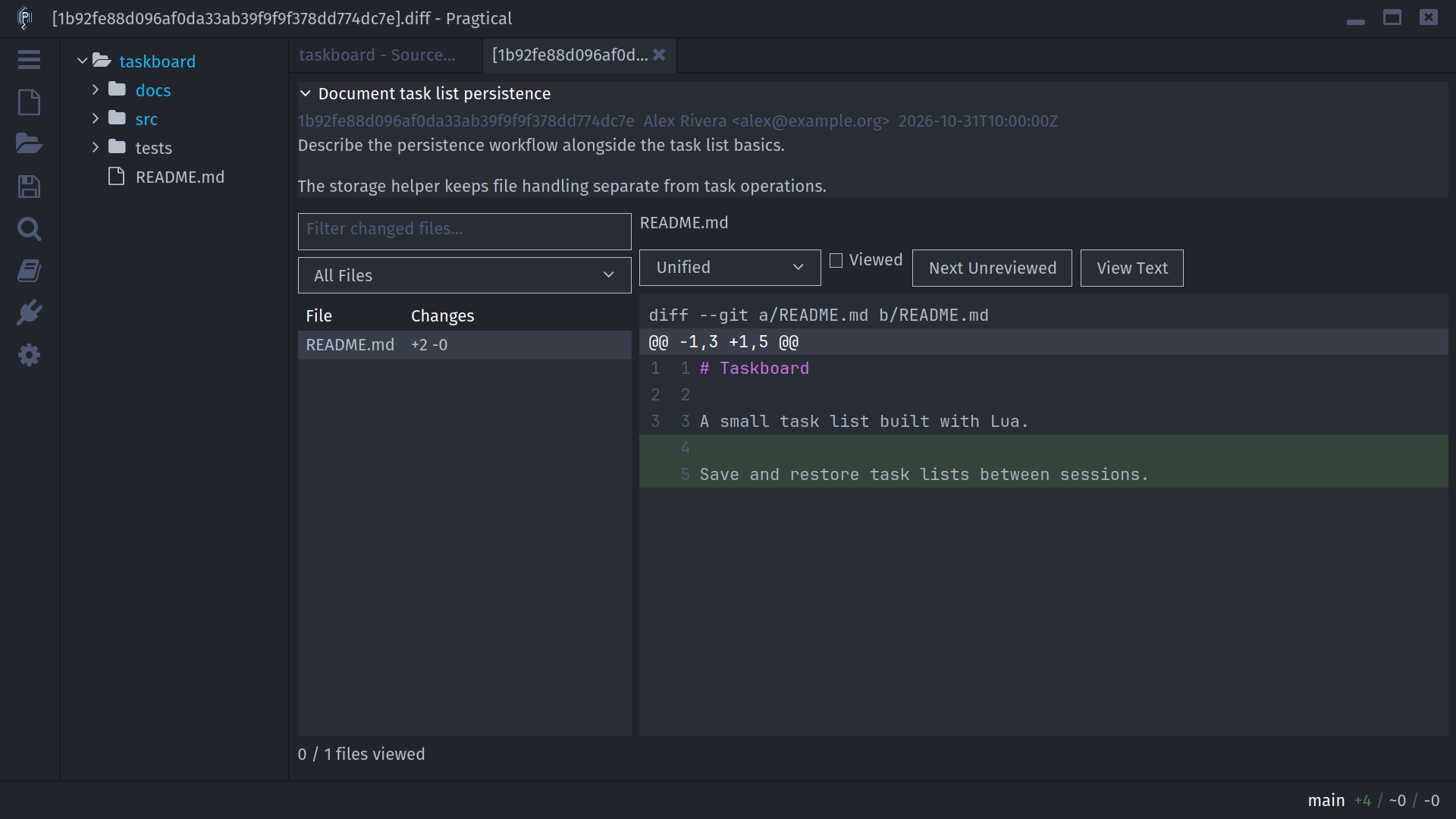
Commit comparisons start with a compact subject header. Click its disclosure button or subject to expand the full message, author, date, and hash. The body is scrollable when long, leaving the diff controls accessible below it.
Working-tree and branch-to-branch comparisons do not invent a commit message: there may not be one single commit describing those changes.
Mark Files as Viewed
Check Viewed for the current file. Next Unreviewed moves to the next unmarked file, and the footer shows progress through the comparison. The Unreviewed filter helps narrow a large review.
These marks belong to this comparison in this editor session. They do not change repository state or post a review to a hosting service.
Text, Images, and Binary Files
View Text opens the complete original patch, including its preamble and full commit message when available. You can also make plain text the default using Settings > Plugins > Source Control Management > Diff Viewer. See Configuration.
In the workbench, Image / Binary... loads the two file versions as images when decodable, otherwise as hexadecimal data. Binary headers remain above the scrolling data. Hex previews cover the first 64 KiB; text and binary version previews have a 16 MiB limit. Large advanced patches also have a 16 MiB preview limit; use View Text when it is available to inspect the original patch.
Compare an Older File with the Current Copy
Open history for a specific file, select a commit, and choose Compare With
Current. This uses Pragtical's built-in
Diff Viewer to compare that historical file
with the working file. scm:compare-with-head provides the corresponding
comparison against the current committed version.
This comparison is different from View Diff, which shows what the selected commit changed relative to its parent.