Application Menus
The application menu provides mouse and keyboard access to editor actions, organized under File, Edit, Search, View, Tools, and Help. Plugins can add their own actions and submenus.
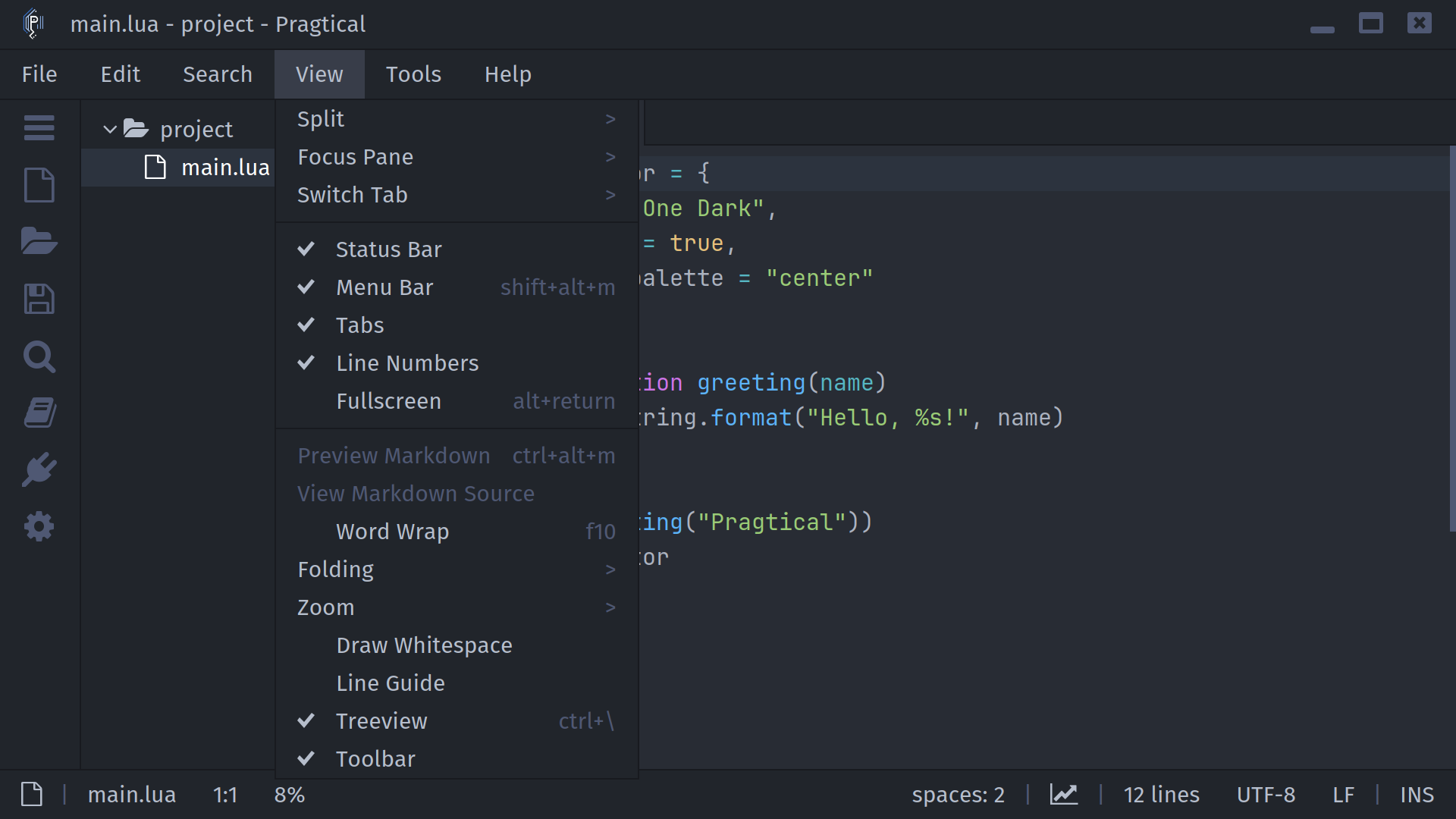
Show the menu bar
The menu bar is hidden by default. Press Alt+Shift+M to show or hide it. The treeview toolbar's menu button toggles the same setting. You can open the popup with Alt+M even when the bar is hidden. On macOS, use Option instead of Alt.
- User Module
- Settings UI
Open your user module and enable the bar:
local config = require "core.config"
config.show_menubar = true
Set it to false to hide the bar.
Open Settings with the ui:settings command, then enable
Core > User Interface > Show Menu Bar.
The visibility change applies immediately and saved preferences override the
default on later starts.
When the labels cannot all fit, the bar displays a single Menu button containing the same groups.
Navigate and run actions
Click a group to open it. Move the pointer to another group to switch menus, or click the active group again to close it. Submenus expand from entries marked with an arrow.
Opening the menu keeps the document's selection and focus available for editing actions. Unavailable actions remain visible but disabled. Checkmarks show enabled options, and assigned keyboard shortcuts appear beside actions. Available plugin actions depend on which plugins are enabled.
| Key | Action |
|---|---|
| Left/Right | Switch top-level groups when no submenu entry is selected. |
| Down | Select the first entry after opening a group. |
| Up/Down | Move through entries. |
| Right | Open the selected submenu. |
| Left | Return from a submenu to its parent. |
| Enter | Run the selected action or open its submenu. |
| Escape | Close one submenu at a time, then the main popup. |
Click outside the popup to dismiss it. Opening or switching a top-level group leaves its entries unselected until you move into them.
Menu groups
| Group | Common actions |
|---|---|
| File | Create, open, save, reload, rename, and close files; manage project folders. |
| Edit | Undo/redo, clipboard operations, line and selection editing, case conversion, line endings, and encodings. |
| Search | Find and replace, previous/next matches, and Go to Line. |
| View | Split panes, switch focus and tabs, toggle interface elements, and preview Markdown. |
| Tools | Open the command palette, log, user/project configuration, and enabled plugin tools. |
| Help | Open documentation, project links, and About. |
Animations
Showing and hiding the bar follows the editor's animation settings. To disable just this height animation, add this to your user module:
local config = require "core.config"
config.disabled_transitions.menubar = true
You can also enable Menu Bar under Core > Graphics > Disable Transitions in Settings.
Commands and shortcuts
| Command | Default shortcut | Action |
|---|---|---|
menu-bar:open | Alt+M | Open or close the popup, including when the bar is hidden. |
menu-bar:toggle | Alt+Shift+M | Toggle bar visibility. |
menu-bar:show | None | Show the bar. |
menu-bar:hide | None | Hide the bar. |
See Command Palette for searching actions by name. Plugin authors can extend menus using the Application Menus developer guide.