Audio Player
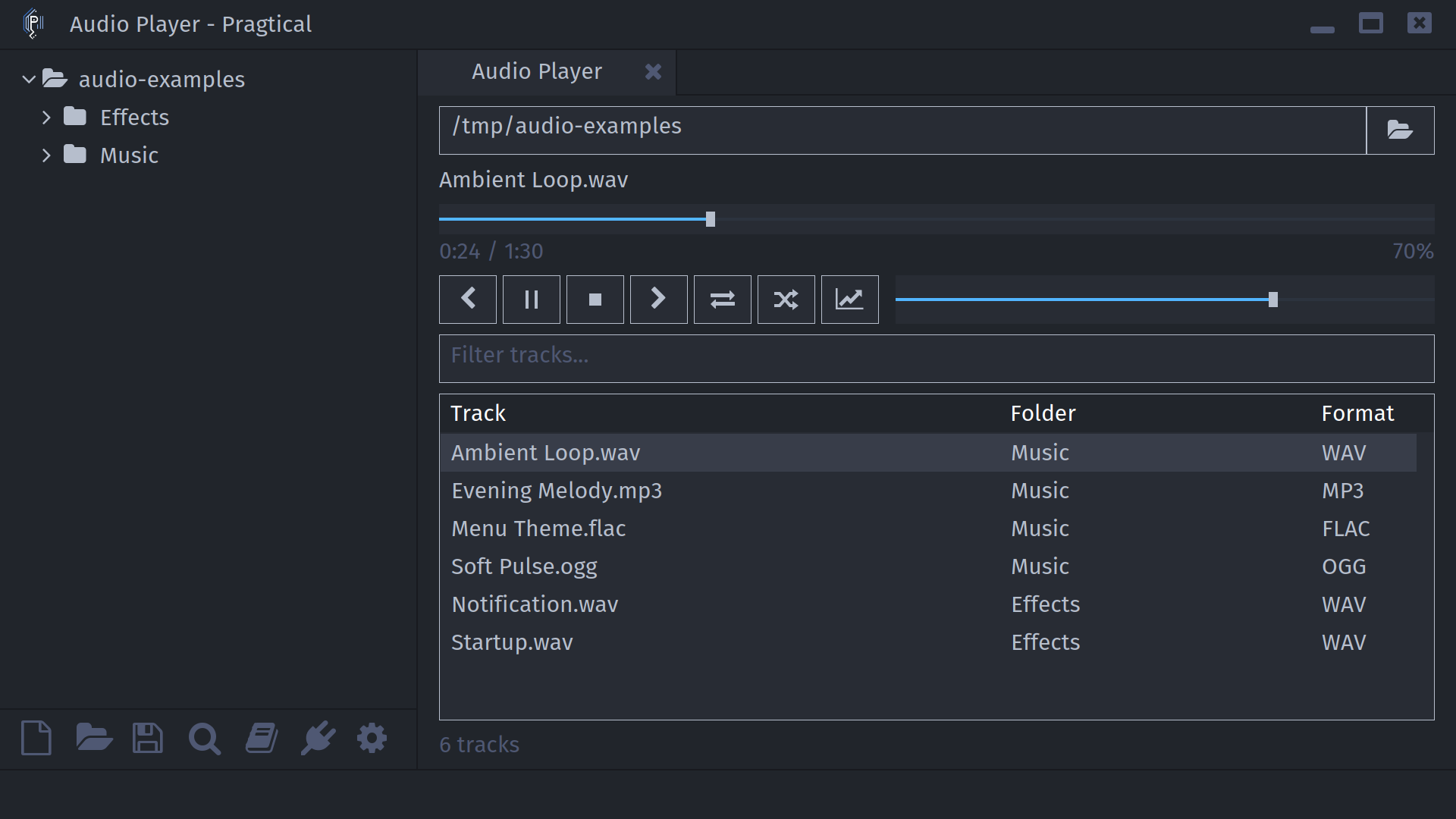
Pragtical includes a built-in Audio Player for listening to local audio files without leaving the editor. You can open a single file or scan a folder into a playlist, with playback controls, repeat, shuffle, and an optional waveform display.
Common formats include WAV, MP3, FLAC, Ogg Vorbis, Opus, and AIFF. Available formats depend on the audio decoders included in your Pragtical build.
Opening the Player
There are several ways to open the Audio Player:
-
Open an Audio File: Open a supported file through the project tree, Open File, or project file search. The player opens and starts playing that file instead of displaying it as text.
-
Command Palette: Press ctrl+shift+p and select
Audio Player: Opento open or return to the player, orAudio Player: Open Directoryto choose a folder. -
Drag and Drop: Drop an audio file into the editor to play it. Dropping a folder onto the player scans it into a playlist.
Opening another audio file reuses the player tab. A file opened this way plays on its own and stops at the end, even when repeat or shuffle is enabled. Click a playlist entry or use Next or Previous to return to playlist playback.
Playlists and Playback
Use the folder button at the top of the player to choose a directory. The player scans supported files in that folder and its subfolders, showing their filename, folder, and format. Choosing another directory replaces the playlist and stops playback; scanning a folder does not start playing automatically.
Click a track to play it, or select it with the arrow keys and press enter. The controls below the progress bar let you play or pause, stop, move between tracks, toggle repeat and shuffle, and adjust the volume. Drag the progress slider to seek within a track.
- Repeat starts the playlist again when it reaches the end.
- Shuffle plays tracks in a random order without repeating them until the playlist has been exhausted. Previous retraces the shuffle history.
- Filter tracks searches filenames and folders. It only filters the visible list; it does not change the playlist or playback order.
Playback continues when you switch to another tab. Closing the player stops it.
When workspace restoration is enabled, the playlist, controls, and playback position are restored with your workspace. Playback does not resume automatically: press Play to continue from the saved position.
Waveform and Levels
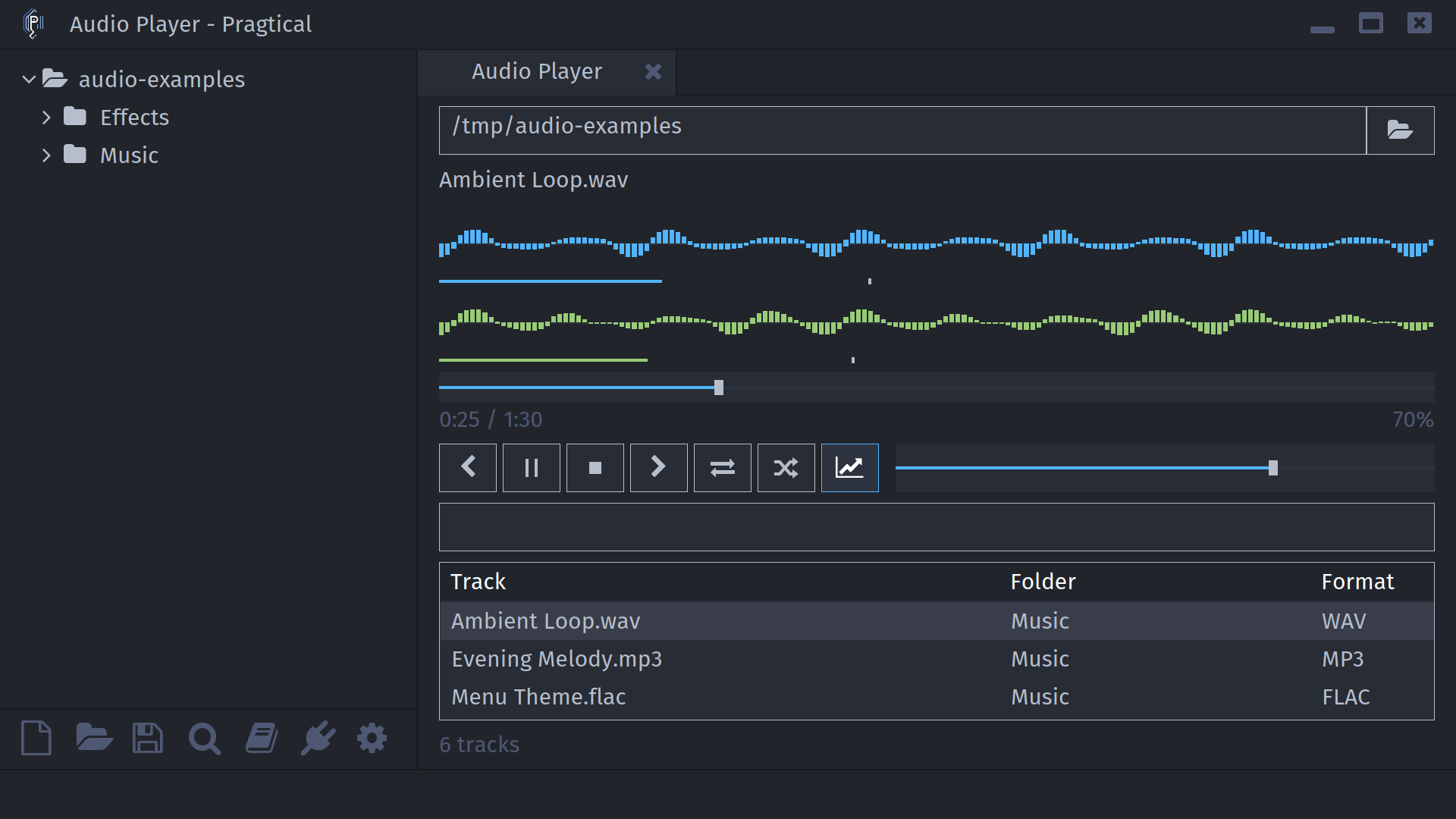
Click the chart button, or run Audio Player: Toggle Visualization, to show a
live waveform and level meters while audio is playing. Stereo output is shown
as separate channels. This displays recent audio output, not a waveform of the
entire track.
Visualization is disabled by default. Turning it off stops the visualization work and gives the playlist more space without interrupting playback.
Available Commands
| Name | Description |
|---|---|
audio-player:open | Open or focus the player |
audio-player:open-directory | Choose a folder to scan into a playlist |
audio-player:play-pause | Start, pause, or resume playback |
audio-player:stop | Stop playback |
audio-player:next | Play the next track |
audio-player:previous | Play the previous track |
audio-player:toggle-repeat | Toggle repeating the playlist |
audio-player:toggle-shuffle | Toggle shuffled playback |
audio-player:toggle-visualization | Show or hide the waveform and meters |
audio-player:seek-forward | Seek forward 10 seconds |
audio-player:seek-backward | Seek backward 10 seconds |
audio-player:select-next | Select the next visible playlist entry |
audio-player:select-previous | Select the previous visible playlist entry |
audio-player:play-selected | Play the selected entry |
Keyboard Shortcuts
These shortcuts apply while the player is focused, except when typing in a text field such as the track filter.
| Action | Shortcut |
|---|---|
| Play or pause | space |
| Play the selected track | enter |
| Select the next or previous entry | down / up |
| Seek backward or forward 10 seconds | left / right |
| Play the next track | ctrl+right |
| Play the previous track | ctrl+left |
Configuration
Visualization, repeat, and shuffle are off by default. You can change these defaults and choose a directory to scan when opening a new player tab.
- User Module
- Settings UI
Set the player defaults in your user module:
local config = require "core.config"

config.audio_player.visualization = false
config.audio_player.repeat_all = false
config.audio_player.shuffle = false
config.audio_player.directory = "" -- Set this to your music folder's path.
Open Settings and select Core > Audio Player. Adjust Default Visualization, Default Repeat, Default Shuffle, and Default Directory as needed.
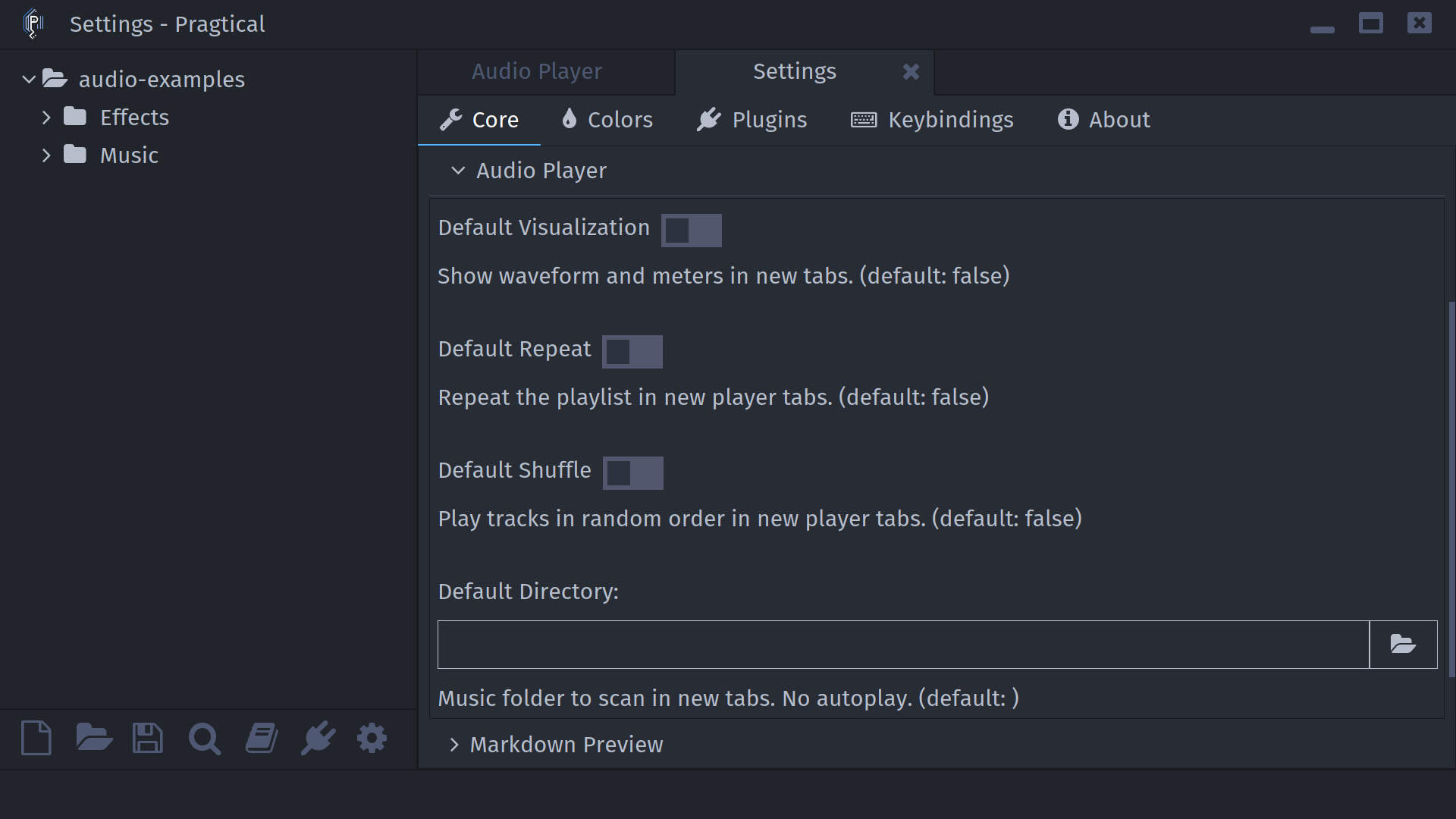
These settings apply to new player tabs, not a player that is already open. The default directory is scanned without autoplay. Opening a specific file or choosing a directory explicitly takes precedence over the default directory.
For plugin development, see the AudioView API documentation and the Audio API documentation.