Command Palette
The command palette lets you search for editor and plugin actions by name. Command prompts can appear at the bottom, top, or center of the window, including prompts for opening files and entering text.
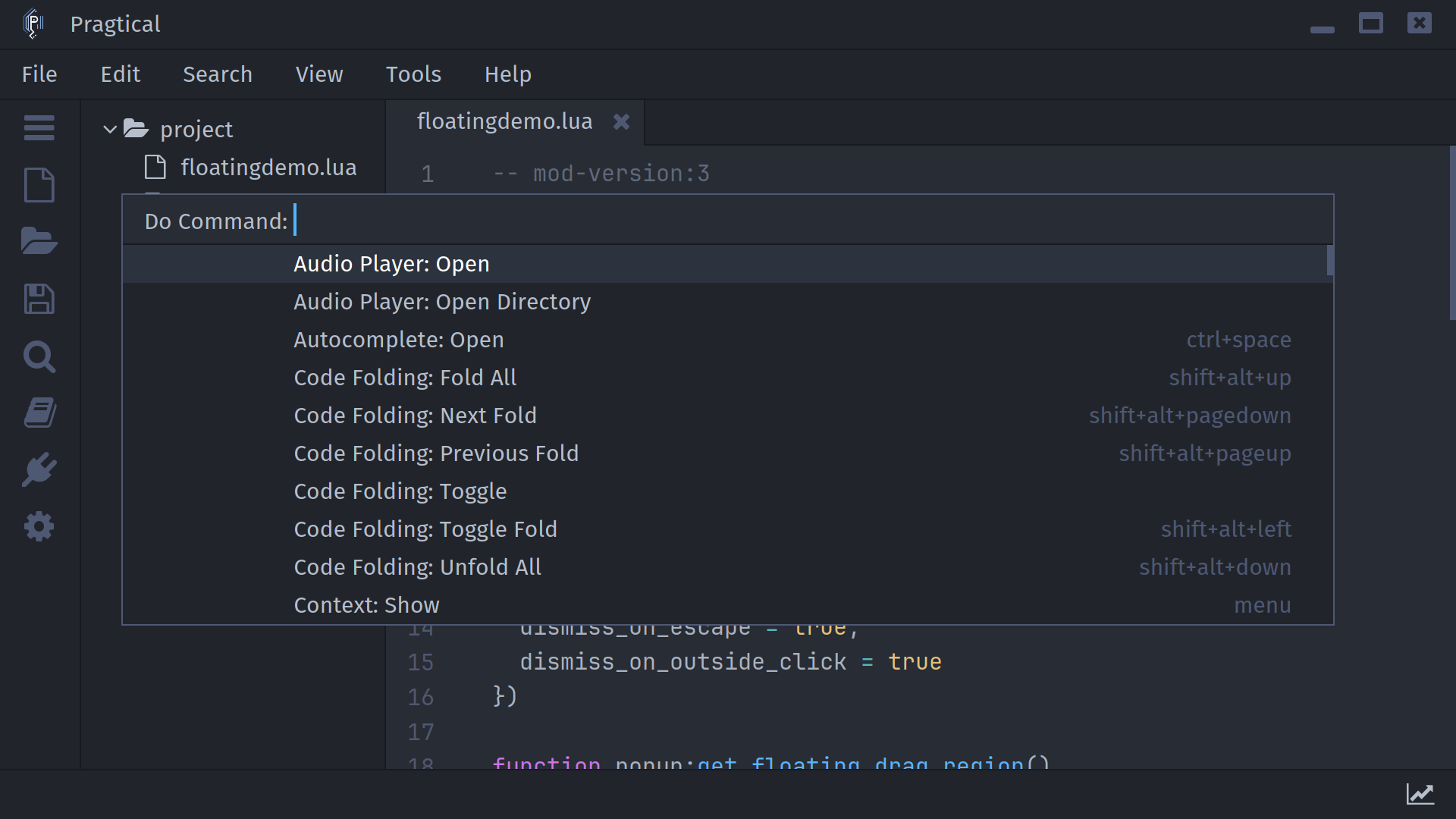
Run a command
Press Ctrl+Shift+P to open the palette. On macOS, use Cmd+Shift+P. Type part of an action's name to narrow the results, then use Up/Down to select an action and Enter to run it. Clicking a result also runs the action. Press Escape to cancel. Assigned keyboard shortcuts appear beside the command names.
When there are more results than fit, scroll with the mouse wheel or scrollbar. Keyboard navigation keeps the selected result visible.
Palette position
| Position | Placement |
|---|---|
| Bottom (default) | Full-width input above the status bar, with results above it. |
| Top | Full-width input below the title/menu bar, with results below it. |
| Center | A bordered panel over the document, without resizing editor panes. |
The centered panel adjusts to the window size and UI scale. A position change applies to the next prompt you open, including file pickers and text prompts.
- User Module
- Settings UI
Open your user module and set the position:
local config = require "core.config"
config.commandview_position = "center" -- "bottom", "top", or "center"
config.max_visible_commands = 10
Open Settings with the ui:settings command. Under
Core > User Interface, choose Command Palette Position.
Adjust Maximum Palette Items to change how many results fit at once;
the default is 10.
Animations
Opening and closing use the editor's animation settings in every position. To disable just the palette animation, add this to your user module:
local config = require "core.config"
config.disabled_transitions.commandview = true
You can also enable Command View under Core > Graphics > Disable Transitions in Settings. Disabling all transitions also disables this animation.
Commands and shortcuts
| Command | Default shortcut | Action |
|---|---|---|
core:find-command | Ctrl+Shift+P | Open the command palette. |
command:submit | Enter | Submit the current prompt or selected result. |
command:escape | Escape | Cancel the current prompt. |
For mouse-accessible actions, see Application Menus. Plugin authors can read about palette placement and custom result rendering in Floating Views.