Renderer Backends
Pragtical includes three renderer backends in the same executable. You can switch between them without rebuilding the editor, either through Settings or with an environment variable when launching it.
| Backend | Settings label | How it draws |
|---|---|---|
surface | Surface | Draws on CPU surfaces and presents them through SDL. The conservative default in the project's build options. |
sdlrenderer | SDLRenderer | Draws on CPU surfaces, then presents a streaming texture through SDL's 2D renderer. This is not the same as native GPU drawing. |
sdlgpu | SDLGPU | Uses SDL's GPU API for native drawing and batched text, rectangles, images, pixels, and polygons. Some offscreen operations can still use CPU fallbacks. |
SDL GPU can reduce rendering work on the CPU, but the results depend on the graphics driver and workload. Surface remains useful for compatibility and for comparing behavior when troubleshooting.
Switch from Settings
- Open the command palette with ctrl+shift+p and select
UI: Settings, or click the Settings button. - In Core, expand Graphics and open the Renderer dropdown.
- Choose Surface, SDLGPU, or SDLRenderer. Choose Default to remove your saved preference and use the backend selected by your build.
- Close Pragtical completely and launch it again.
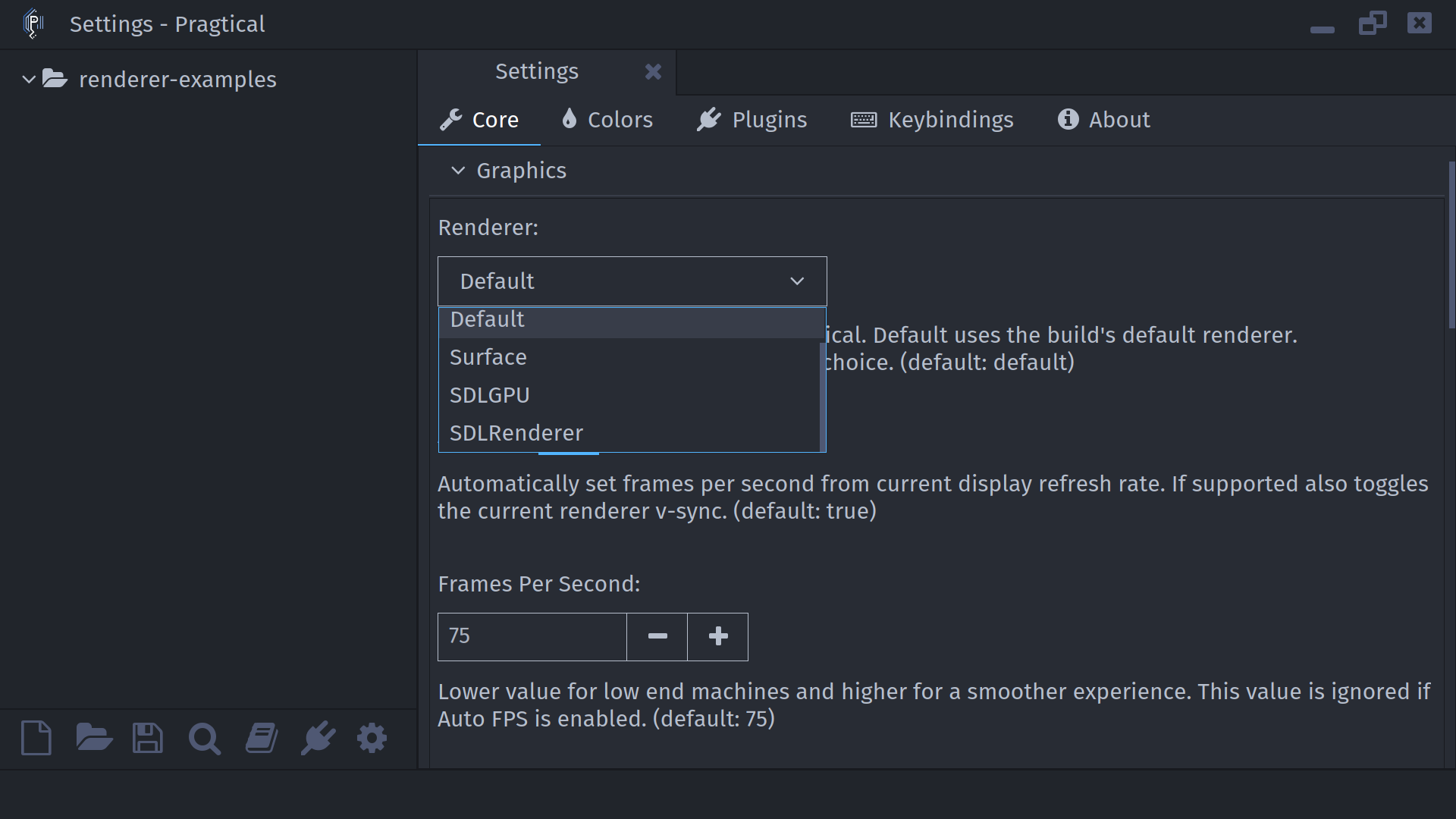
The renderer is selected early during startup. The core:restart command and
reloading your user module do not replace it. Close and reopen the application
after changing the setting or its environment variables.
The choice is stored in a small renderer file in your
user directory. Selecting Default removes that
file. There is no need to edit user_settings.lua or set config.renderer in
your user module; that runs too late to select the startup backend.
Selection Priority
The startup preference is resolved in this order:
- A nonempty
PRAGTICAL_RENDERERenvironment variable. - A valid saved Renderer setting.
- The default chosen when building Pragtical with
-Drenderer_backend=....
Default does not necessarily mean Surface: a distributor or local build can choose another default. An environment override does not change the saved setting, so the dropdown may differ from the renderer actually running.
Check the Active Backend
Open Settings > About and look for Renderer. This reports the active backend, including any fallback, rather than just the saved preference. SDL GPU also reports its power preference and device information when available.
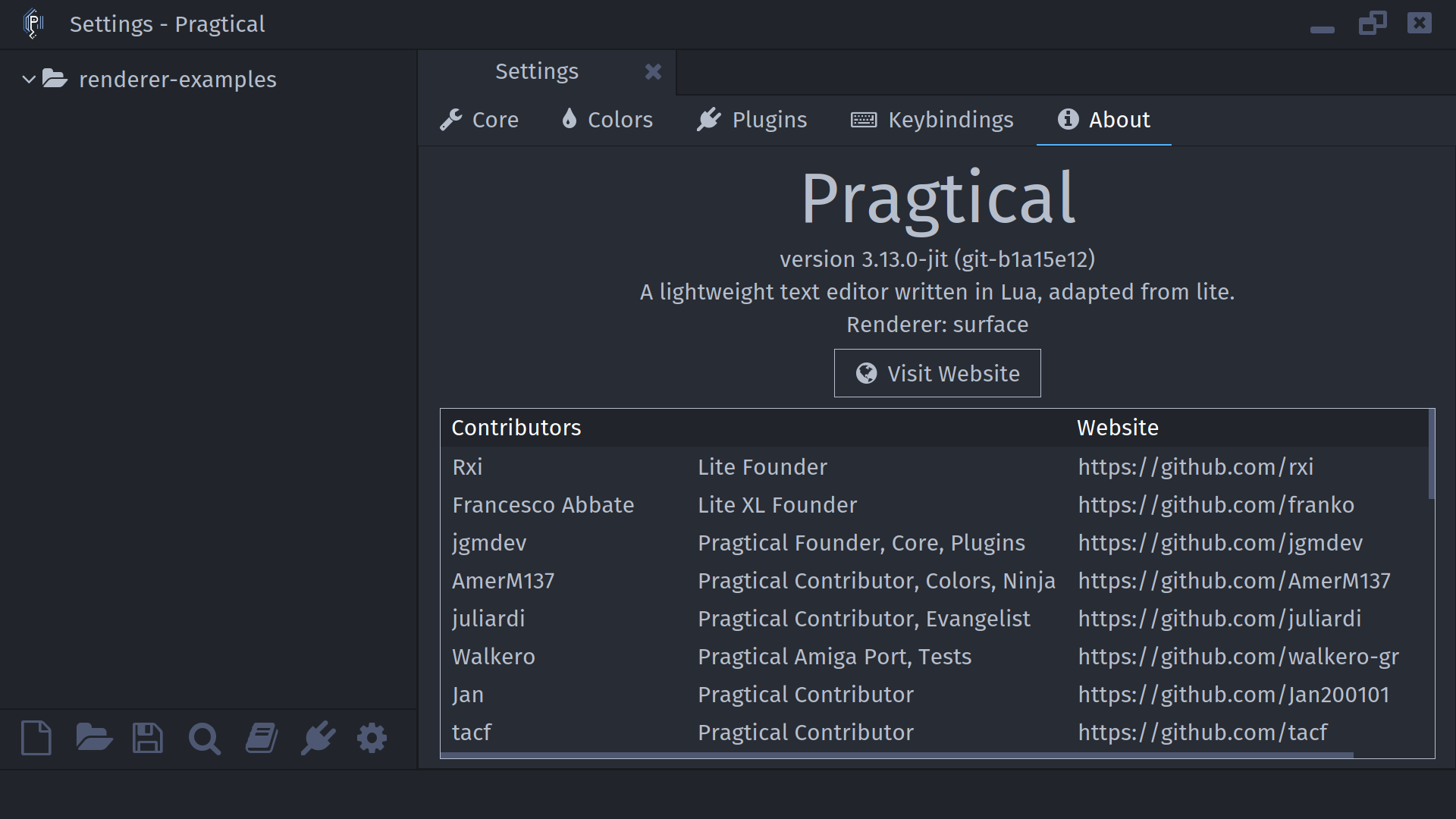
Plugins and scripts can read the same information through
core.window:get_renderer_info().
Switch with Environment Variables
Set PRAGTICAL_RENDERER to surface, sdlrenderer, or sdlgpu before starting
the process. Names are lowercase. The examples below start SDL GPU; replace
sdlgpu with either of the other values to test that backend.
Close existing Pragtical instances first so opening another file does not simply hand it to an editor that is already running.
- Linux / Unix
- macOS
- Windows PowerShell
- Windows Command Prompt
PRAGTICAL_RENDERER=sdlgpu pragtical
For an AppImage, replace pragtical with the path to the AppImage. This syntax
only sets the variable for that launch. To ignore an exported override and
use your saved preference again:
env -u PRAGTICAL_RENDERER pragtical
Launch the executable inside the app bundle from Terminal:
PRAGTICAL_RENDERER=sdlgpu /Applications/Pragtical.app/Contents/MacOS/pragtical
Adjust the path if the application is installed elsewhere. This applies to that launch, not later launches from Finder.
$env:PRAGTICAL_RENDERER = "sdlgpu"
pragtical
Use the installed executable's path if it is not on PATH. The variable
remains set in this PowerShell session; remove it before testing the saved
preference again:
Remove-Item Env:PRAGTICAL_RENDERER -ErrorAction SilentlyContinue
set "PRAGTICAL_RENDERER=sdlgpu"
pragtical
Clear the override in that terminal with set "PRAGTICAL_RENDERER=".
Other variables below use the same launch syntax. For a persistent override, set it in your launcher, wrapper script, or operating system's environment settings. Terminal exports are not automatically inherited by desktop launchers.
GPU Selection and Display Controls
GPU Power Preference
PRAGTICAL_SDLGPU_POWER affects only sdlgpu:
| Value | Behavior |
|---|---|
auto (default) | Try a low-power GPU first, then a high-performance preference if it cannot initialize and present to the window. |
low | Try only the low-power preference. |
high | Try only the high-performance preference. |
For example:
PRAGTICAL_RENDERER=sdlgpu PRAGTICAL_SDLGPU_POWER=high pragtical
These are device preferences, not GPU model names or guarantees of a specific adapter. If no usable SDL GPU device can present the window, Pragtical falls back to Surface. Check About and terminal diagnostics for the actual result.
SDL Driver Overrides
These variables are handled by SDL. Available drivers depend on your platform,
SDL build, and installed graphics drivers; an unsupported forced driver can
prevent startup. They control a different layer than PRAGTICAL_RENDERER.
SDL_GPU_DRIVER: select the graphics API used bysdlgpu, for examplevulkan,metal, ordirect3d12. Leave unset for SDL's selection.SDL_RENDER_DRIVER: select SDL's 2D presentation driver forsdlrenderer, for examplesoftware,opengl,metal, ordirect3d11when available. Pragtical sets asoftwarehint by default; an environment override can select another.SDL_VIDEO_DRIVER: select the window-system driver, for examplewaylandorx11on Linux.dummyis for headless tests, not a visible editor or a real GPU comparison.SDL_FRAMEBUFFER_ACCELERATION: control acceleration of Surface presentation.0disables it,1requests it, or a supported SDL rendering driver name selects it. This does not move Surface's drawing work onto the GPU. Pragtical requests1on Windows.SDL_RENDER_VSYNC: set SDL 2D renderer creation-time vsync (0or1). Pragtical subsequently applies its Auto FPS setting; this is not the SDL GPU vsync control.SDL_VIDEO_X11_NET_WM_BYPASS_COMPOSITOR: control X11's compositor-bypass hint. Pragtical sets0to disable it;1enables the hint. Whether bypass actually occurs depends on the window manager. This does not select a renderer backend.
For example, on a Linux system with Vulkan and X11 support:
PRAGTICAL_RENDERER=sdlgpu SDL_GPU_DRIVER=vulkan SDL_VIDEO_DRIVER=x11 pragtical
For additional platform-specific SDL hints, see the SDL hint reference. Most users should leave these unset and change only the Pragtical backend.
Scaling
| Variable | Purpose |
|---|---|
PRAGTICAL_SCALE | Override the startup interface scale, for example 1, 1.5, or 2. This does not select a renderer. |
PRAGTICAL_SCALE_CODE | With the bundled Scale plugin enabled, override the code-font scale independently. Set PRAGTICAL_SCALE too: the plugin applies the code override in that startup path. |
PRAGTICAL_RENDERER=sdlgpu PRAGTICAL_SCALE=1.5 PRAGTICAL_SCALE_CODE=2 pragtical
Frame Rate and Vsync
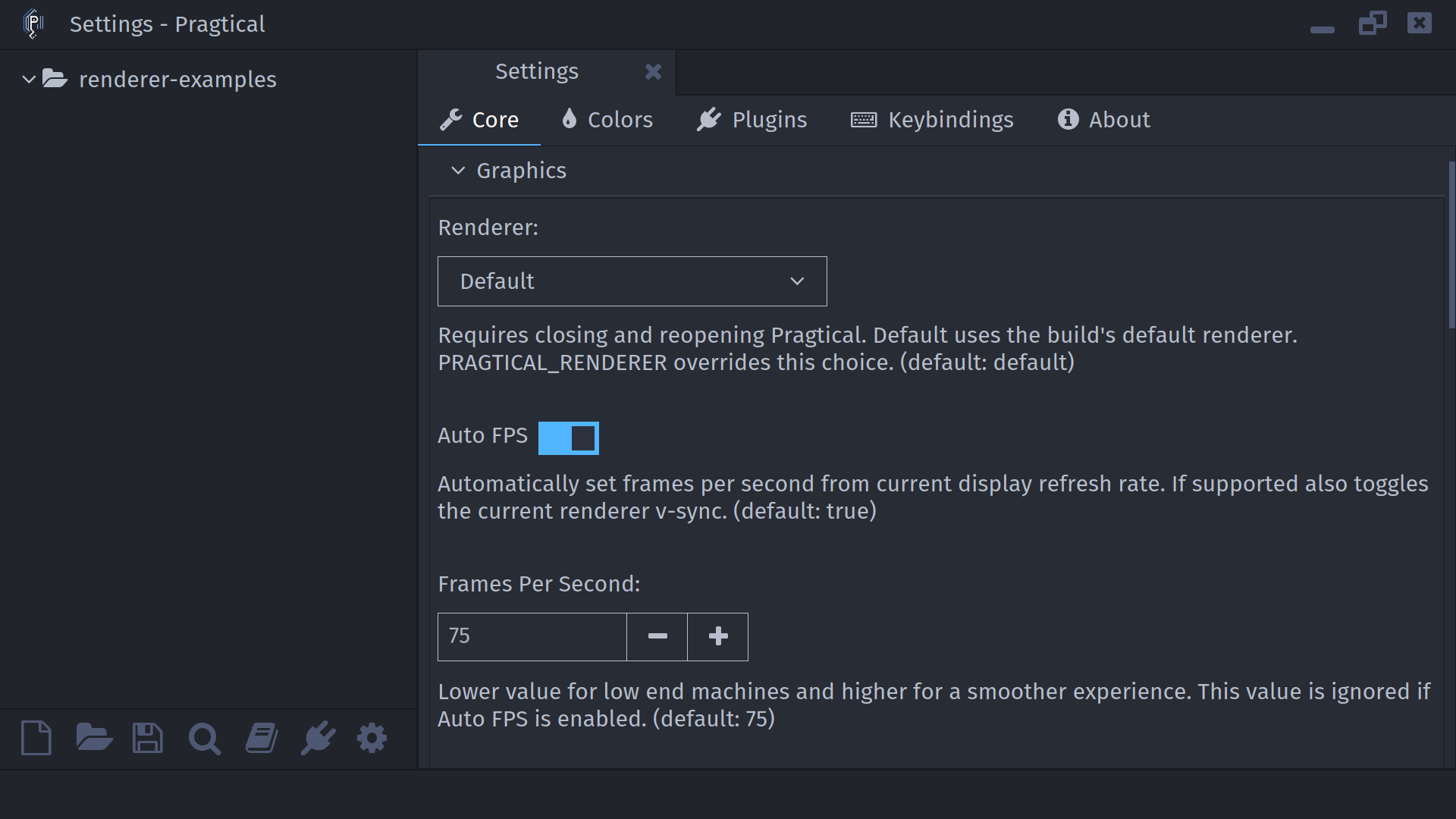
In Settings > Core > Graphics, Auto FPS follows the display's refresh rate and enables the backend's vsync support where available. Disable it to use Frames Per Second as a manual limit. SDL GPU prefers a tear-free presentation mode with Auto FPS on; disabling it can allow tearing.
PRAGTICAL_SDLGPU_PRESENT_SYNC is a diagnostic CPU/GPU synchronization switch,
not a replacement for Auto FPS or a way to select the display refresh rate.
SDL GPU Diagnostic Variables
The remaining renderer-specific variables are intended for troubleshooting and development. Leave them unset for normal use. They can change performance, force slower paths, or add validation drawing and readback.
For the boolean flags, 0, false, no, and off disable the flag
(case-insensitive); other nonempty values enable it. Unset or empty values use
the defaults below. Use 0 and 1 to avoid ambiguity.
PRAGTICAL_SDLGPU_DIRECT_REPLAY(default:1): replay window drawing commands natively on the GPU. Set0to test the compatibility drawing/upload path.PRAGTICAL_SDLGPU_NATIVE_TEXT(default:0, implied by direct replay): explicitly enable native text paths, including when direct replay is disabled.PRAGTICAL_SDLGPU_NATIVE_RECTS(default:0, implied by direct replay): explicitly enable native rectangle paths.PRAGTICAL_SDLGPU_NATIVE_CANVAS(default:0, implied by direct replay): explicitly enable native canvas/image drawing paths.PRAGTICAL_SDLGPU_FULL_FRAME(default:0): force full-frame regions during direct replay instead of the normal dirty-region/command-size decision.PRAGTICAL_SDLGPU_FULL_FRAME_COMMAND_BYTES(default:262144, or 256 KiB): command-buffer byte threshold at which direct replay switches to full-frame regions. Set0to disable this automatic switch; explicitFULL_FRAME=1still wins.PRAGTICAL_SDLGPU_PRESENT_SYNC(default:0): wait for a GPU fence after every presentation. Useful for comparisons, but removes normal CPU/GPU overlap.PRAGTICAL_SDLGPU_STATS(default:0): print accumulated rendering counters to standard error when the window's renderer is destroyed, normally on exit.PRAGTICAL_SDLGPU_VALIDATE_TEXT(default:0): enable native text/atlas validation with GPU readback and terminal diagnostics. Also enables native text paths.PRAGTICAL_SDLGPU_VALIDATE_PROBE(default:1): include the extra validation probe drawing when text validation is active. Set0to omit the probe.
Setting a NATIVE_* flag to 0 does not disable that path while direct replay
still enables it. For a compatibility comparison, set DIRECT_REPLAY=0 and
leave the explicit native and validation flags unset.
To collect counters, launch from a terminal, use the editor, then close it:
PRAGTICAL_RENDERER=sdlgpu PRAGTICAL_SDLGPU_STATS=1 pragtical
These controls apply only to SDL GPU and do not tune the Surface or SDLRenderer backends. See the renderer implementation for their current behavior.
Troubleshooting
- The setting seems ignored: remove an exported
PRAGTICAL_RENDERER, then close and reopen the editor. Check About rather than relying on the dropdown. - A backend fails to start or renders incorrectly: launch with
PRAGTICAL_RENDERER=surface, remove experimental SDL driver/diagnostic overrides, and save Surface or Default in Settings before trying again. - SDL GPU falls back to Surface: inspect the terminal output and try the
default
autopower preference. A supported graphics API and driver are required; changing the build's default cannot provide missing driver support. - An invalid override was used: unset it or use a supported lowercase
backend name.
PRAGTICAL_RENDERER=defaultis not valid. An unknown nonempty value bypasses the saved preference and falls back to the compiled default.
To select the backend that a custom build uses by default, see Renderer Selection in the build guide.