Markdown Preview
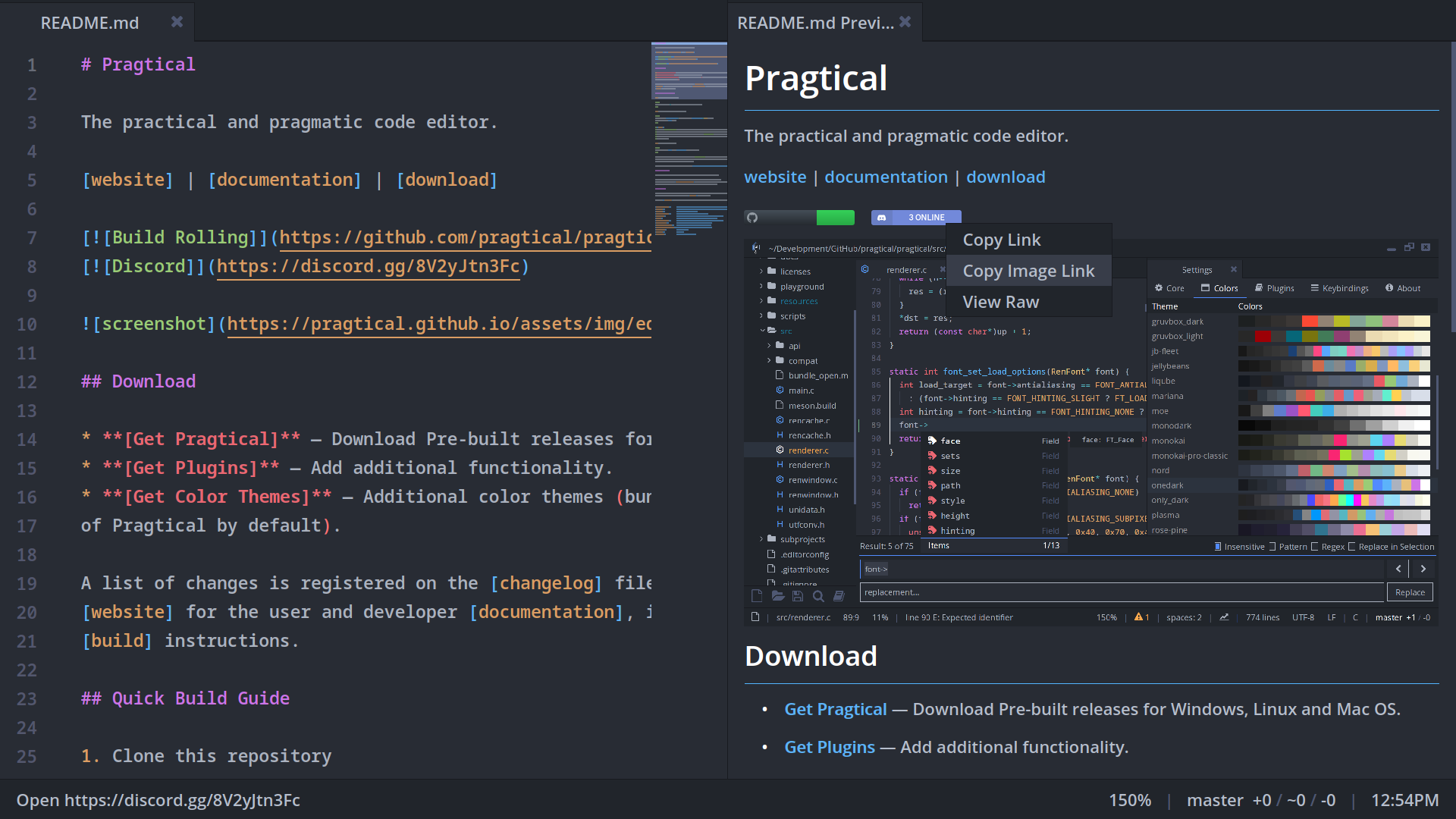
Pragtical includes a built-in Markdown Preview for rendering .md and
.markdown files inside the editor. A preview opened from an editable document
stays linked to it, so saved and unsaved changes appear in the rendered view as
you type.
The preview supports formatted text, syntax-highlighted code blocks, tables, lists, links, footnotes, and local or remote images without requiring a plugin.
Opening a Preview
There are several ways to open a Markdown Preview:
-
Keyboard Shortcut: Open a Markdown document and press ctrl+alt+m.
-
Command Palette: Press ctrl+shift+p and select
Markdown View: Preview. -
Document Context Menu: Right-click an open Markdown document and select
Preview Markdown. -
Tree View Context Menu: Right-click a
.mdor.markdownfile in the project tree and selectPreview Markdown.
Previews opened from an editable document include unsaved changes and continue to update when the document changes. A preview opened from the Tree View is a standalone, file-backed preview that reads its initial contents from disk.
To open or return to the editable source of a standalone preview, right-click
the preview and select View Raw. The source and preview are then linked, and
further document changes update the preview automatically. If the source is
already open, View Raw focuses it instead of opening another copy.
Supported Markdown
The preview supports the Markdown features commonly used by project documentation and README files:
- ATX (
#) and Setext headings - Paragraphs, soft and hard line breaks, and horizontal rules
- Bold, italic, bold-italic, strikethrough, and inline code
- Fenced and indented code blocks, with syntax highlighting when the language is recognized
- Ordered, unordered, nested, task, and definition lists
- Nested blockquotes
- Tables with left, center, and right column alignment
- Inline links, reference links, bare HTTP(S) URLs, email autolinks, and document anchors
- Footnote references and definitions
- Inline, standalone, linked, grouped, and table-cell images
- YAML (
---), TOML (+++), and JSON (;;;) frontmatter
Block HTML comments are hidden. The preview implements this supported Markdown subset rather than acting as a general HTML renderer.
Links and Images
Clicking a link handles its destination according to its type:
- An anchor such as
#installationscrolls to the matching heading or footnote in the current preview. - A project-local Markdown file opens in another Markdown Preview.
- Another project-local file opens normally in the editor or its associated built-in viewer.
- An external URL opens with the system's default application.
Relative file and image paths are resolved from the directory containing the Markdown file. For safety, local targets are opened only when they resolve to an existing file inside the project containing the preview.
Local images use the formats supported by Pragtical's Image Viewer. Remote HTTP(S) images are downloaded to Pragtical's user cache and displayed when the build includes networking support. When networking is unavailable, remote images are not downloaded.
Hovering a link displays its destination in the status bar. The preview context
menu also provides Copy Link and, for images, Copy Image Link.
Selecting and Copying Text
Drag with the mouse to select rendered text, including text inside inline or
fenced code. Press ctrl+c or select Copy from the context menu to
copy the selection as plain text.
Available Commands
| Name | Description |
|---|---|
markdown-view:preview | Preview the active Markdown document |
markdown-view:view-raw | Open or focus the editable source for the active preview |
markdown-view:copy | Copy selected rendered text |
markdown-view:copy-link | Copy the link under the context menu |
markdown-view:copy-image-link | Copy the image URL under the context menu |
treeview:preview-markdown | Open the selected project file in a standalone preview |
Keyboard Shortcuts
| Action | Shortcut |
|---|---|
| Preview the active Markdown document | ctrl+alt+m |
| Copy selected rendered text | ctrl+c |
Configuration
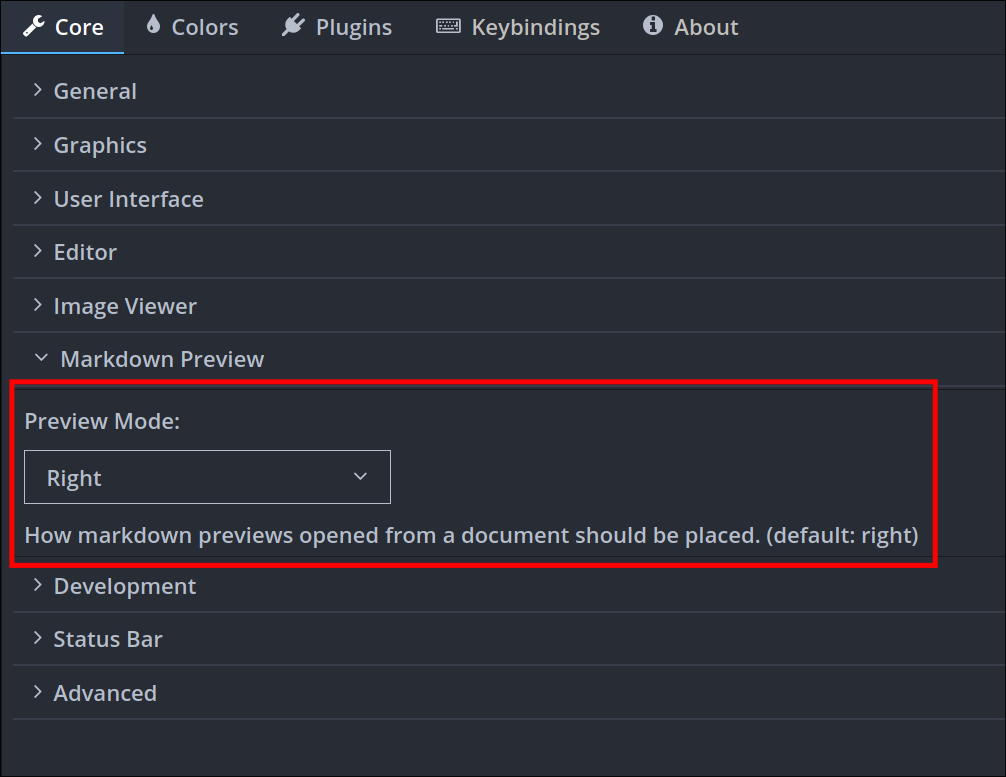
The preview can open to the right, left, top, or bottom of its source document,
or as another tab. The default placement is right.
- User Module
- Settings UI
Set config.markdown_preview_mode in your user module to one of "right",
"left", "top", "bottom", or "newtab":
config.markdown_preview_mode = "right"
Open Settings and select Markdown Preview → Preview Mode, then choose Right, Left, Top, Bottom, or New Tab.
The same placement setting determines where View Raw opens the source relative
to a standalone preview.
For plugin-level construction and rendering details, see the MarkdownView API documentation.