Color Emoji
Pragtical supports color emoji in documents and interface text. To enable them, add a color emoji font after your regular text font in the fallback list. The regular font continues to render code, while the fallback supplies missing emoji characters.
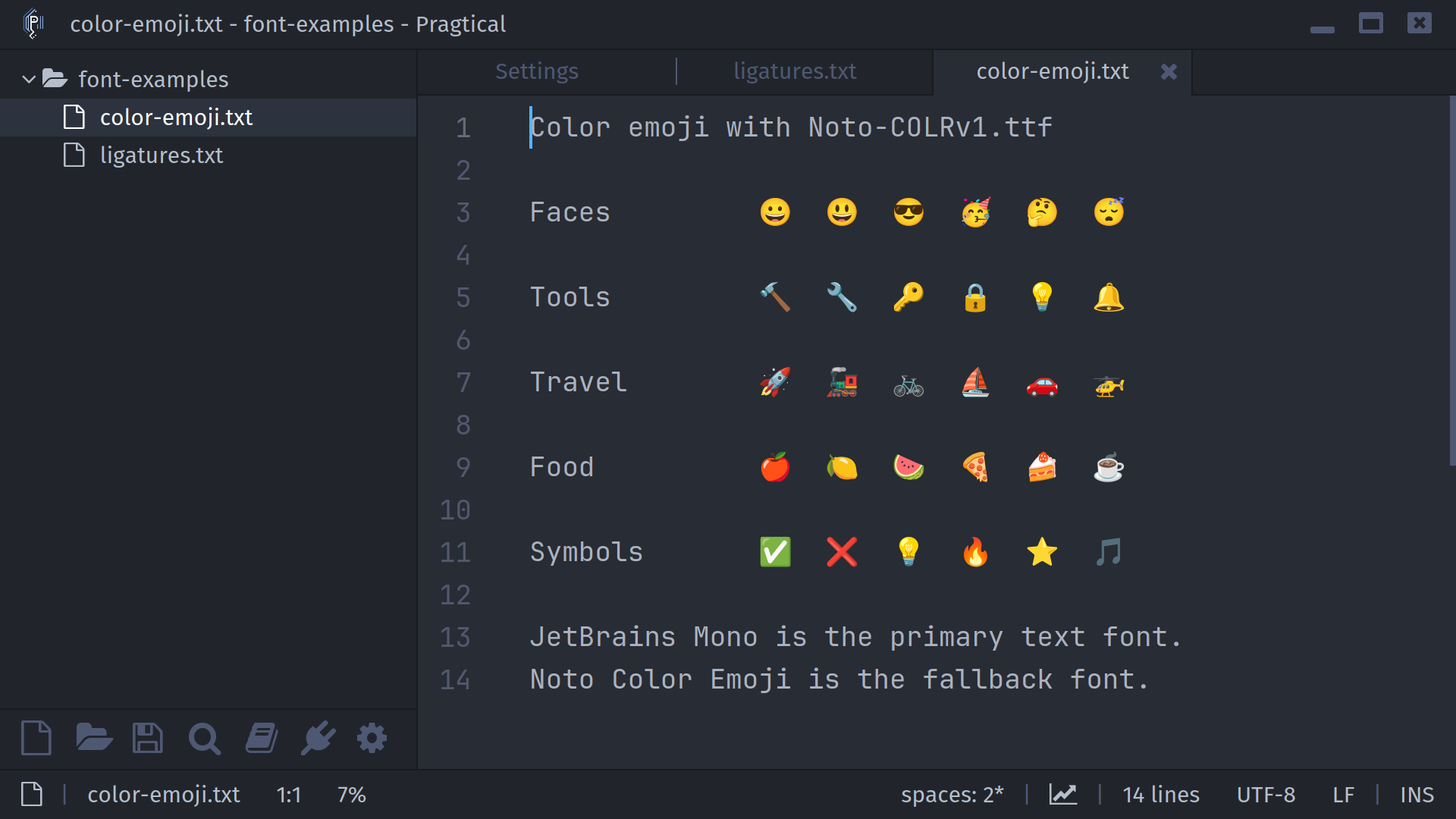
Download the Font
We recommend Noto Color Emoji, specifically the Noto-COLRv1.ttf variant
used in the screenshots. It is available from the official Noto Emoji project:
Create a fonts folder inside your user directory
and place the downloaded file there. For a standard Linux configuration,
the resulting path is ~/.config/pragtical/fonts/Noto-COLRv1.ttf.
Pragtical searches this folder for fonts, so a system-wide installation is
not required.
Add the Fallback
- User Module
- Settings UI
Open your user module and create a font group:
local style = require "core.style"

style.code_font = renderer.font.group {
  renderer.font.load(
    DATADIR .. "/fonts/JetBrainsMono-Regular.ttf",
    15 * SCALE,
    { ligatures = true }
  ),
  renderer.font.load(
    USERDIR .. "/fonts/Noto-COLRv1.ttf",
    15 * SCALE,
    { ligatures = true }
  )
}
Keep your preferred code font first and add any other fallback fonts as additional entries. Load each font separately: font groups cannot be nested.
To display color emoji in interface text as well, configure style.font:
style.font = renderer.font.group {
  renderer.font.load(DATADIR .. "/fonts/FiraSans-Regular.ttf", 15 * SCALE),
  renderer.font.load(
    USERDIR .. "/fonts/Noto-COLRv1.ttf",
    15 * SCALE,
    { ligatures = true }
  )
}
- Open Settings with the
ui:settingscommand. - In Core > Editor > Code Font, press Add.
- In the Font Selector, press All and search for Noto Color Emoji.
Select the entry whose path ends in
Noto-COLRv1.ttf. - Enable Ligatures and press Save.
- Keep your regular code font first and Noto Color Emoji Regular after it. Use the arrow buttons to adjust the fallback order.
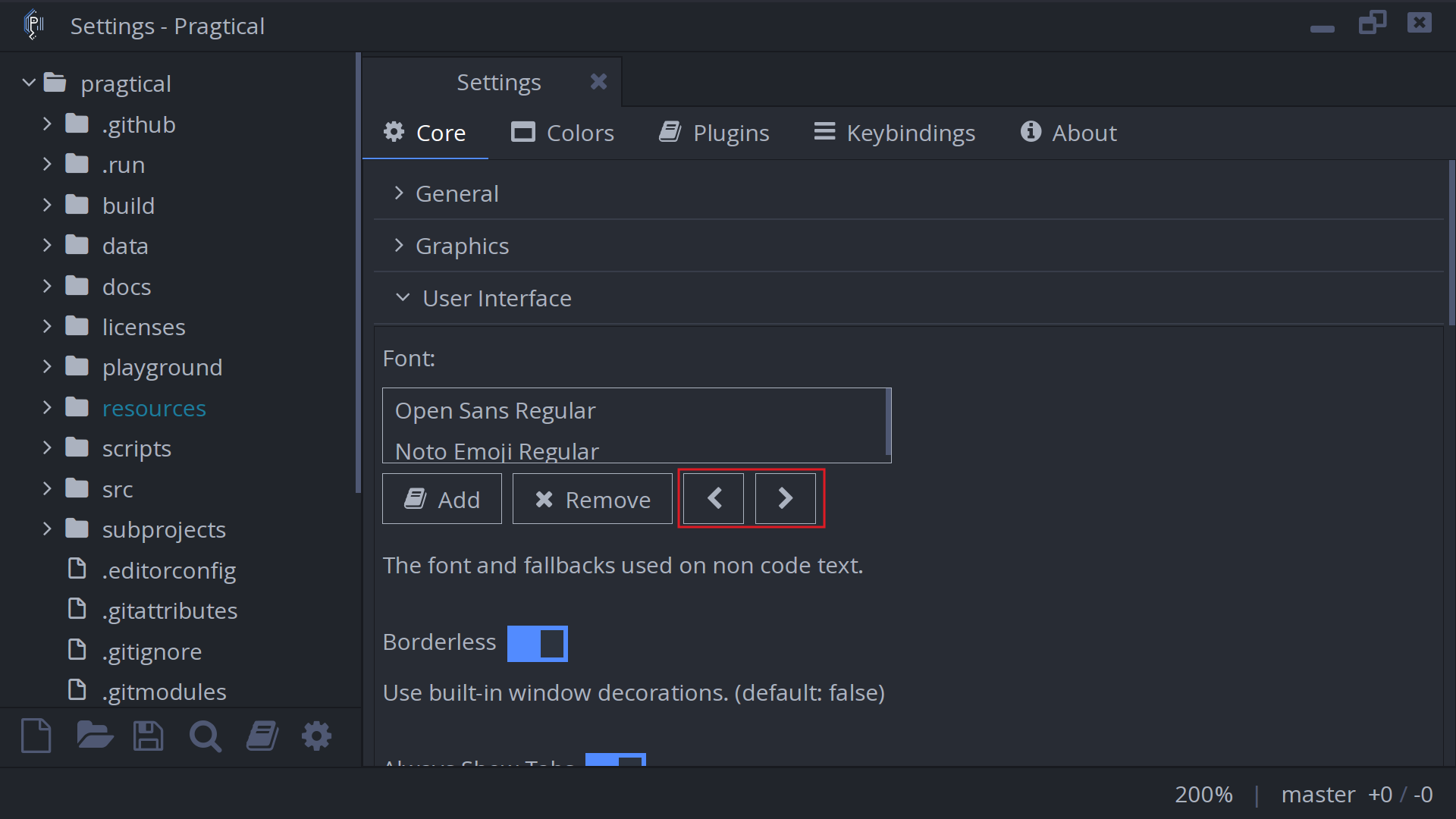
To enable emoji in interface text too, repeat these steps for Core > User Interface > Font.
If the font does not appear in the picker, use Core > General > Clear Fonts Cache, wait for the scan to finish and try again.
The Settings UI shares size and font options across the entire fallback list. Use the User Module to control ligatures for each font separately.
Emoji Sequences and Fallback Order
Color rendering does not require ligatures for individual emoji. Enabling ligatures also allows the emoji font to combine supported sequences, such as joined emoji. Every character in a sequence must be handled by the same font for it to join, so results depend on font coverage and fallback order.
If an emoji appears monochrome, an earlier font may already provide that character. Move Noto Color Emoji ahead of other symbol or emoji fallbacks. If characters appear as boxes, check that the font loaded successfully and that you downloaded the color variant named above.