Project Search
Press Ctrl+Shift+F to open the reusable project search view. With no explicit path, it searches the open project directories. Choose a directory in the path field to restrict the scope.
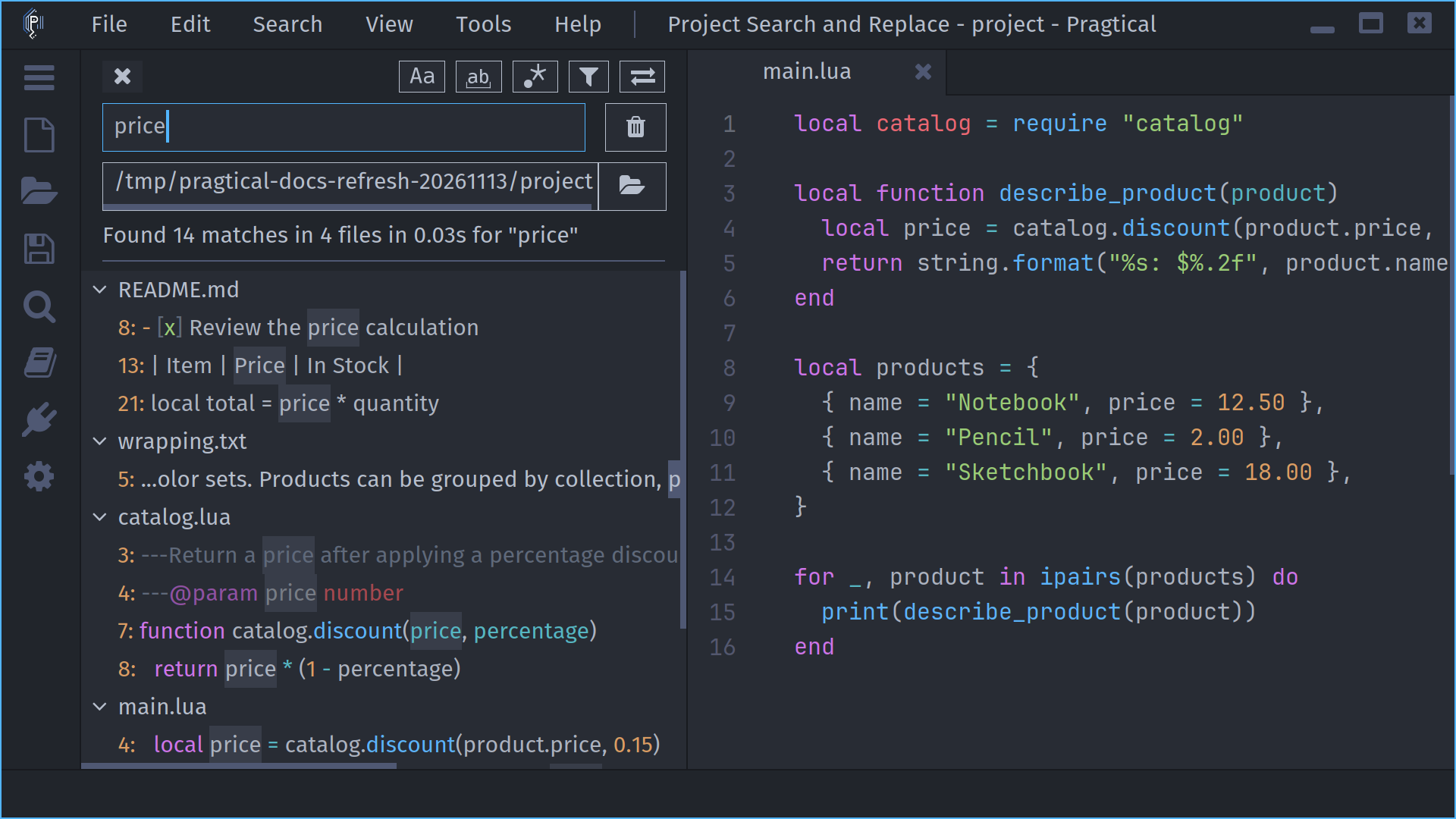
Search and Replace
Enter text and start the search. The search controls support case-insensitive matching, whole words and regular expressions. Global project search supports plain text and regex; the document search bar also supports Lua patterns.
Expand the filters to include or exclude paths. Expand replacement to enter replacement text, then check the files or matches you want to replace. Review the selected results before applying a project-wide replacement.
Use the arrow keys to navigate the results, Enter to open a match, and Space to toggle the selected replacement checkbox. A result's context menu includes normal and split opening actions. Ctrl-click opens a match in the configured split direction, reusing that result pane while its source layout remains available.
Position the Results
Settings > Plugins > Project Search > Position offers Left, Right and Center. Left is the default. The centered popup keeps keyboard result navigation and remains available while live searches update the results. Its opening and closing follow the normal transition settings.
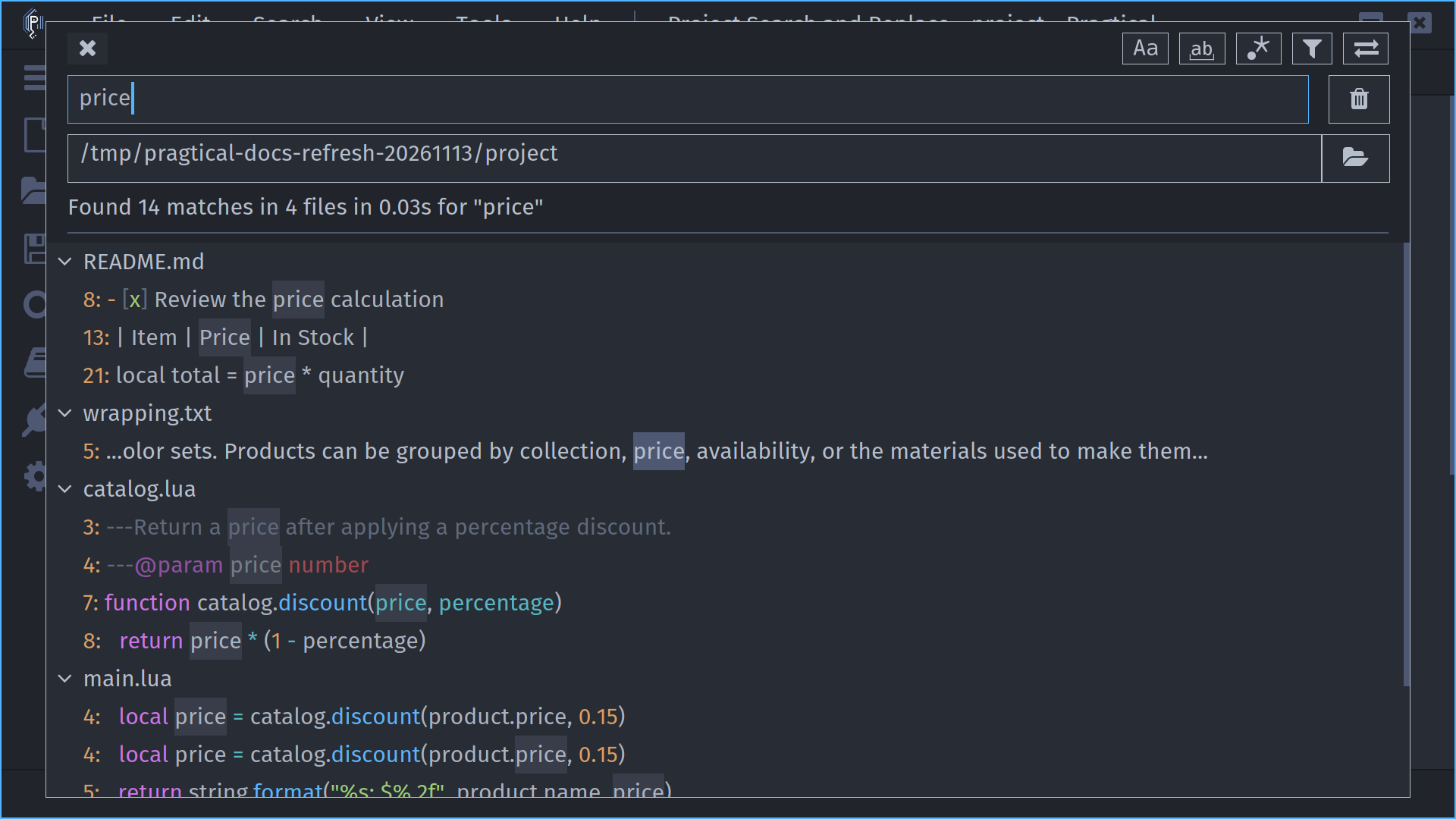
Live Search starts searches while typing and is optional. Other settings control worker count, syntax highlighting and the result split direction.
Plugin Interfaces
Plugins can configure and open the global search with an options table:
local projectsearch = require "plugins.projectsearch"
local results = projectsearch.show {
  text = "TODO",
  search_type = "plain",
  insensitive = true,
  run = true,
}
show and toggle return the reusable global ResultsView. hide returns it
if it has already been created, or nil otherwise, and applies supplied
options without starting a search.
See the Project Search API for all options,
including explicit paths, filters, replacement and focus behavior.