Line Wrapping
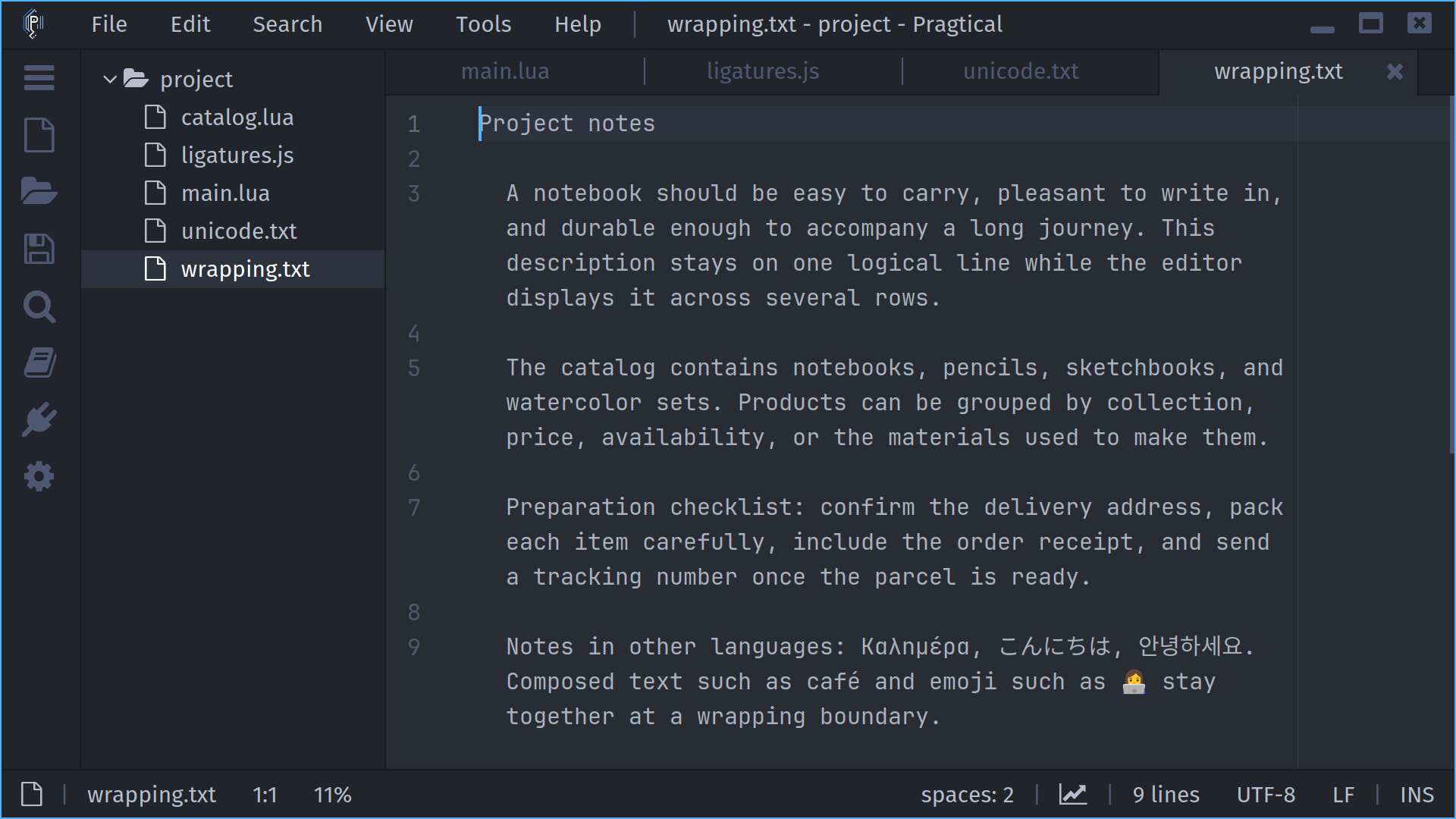
Soft wrapping displays a long document line on several screen rows without
inserting newlines into the file. Toggle wrapping for the active document
with F10, View > Word Wrap, or line-wrapping:toggle.
Choose a Boundary
Wrap at Line Limit is enabled by default. Wrapped views use the smaller of the editor's Line Limit and the available viewport width. The default column limit is 80. The column boundary is measured using the code font; the text still wraps earlier when the window is narrower.
Disable Wrap at Line Limit to wrap only at the available viewport width. The Line Guide plugin and wrapping guide are separate controls: the first marks the configured column limit; the second marks the actual wrap boundary.
- User Module
- Settings UI
local config = require "core.config"
config.line_limit = 80
config.plugins.linewrapping = {
  mode = "word",
  wrap_at_line_limit = true,
  indent = true,
  guide = true,
}
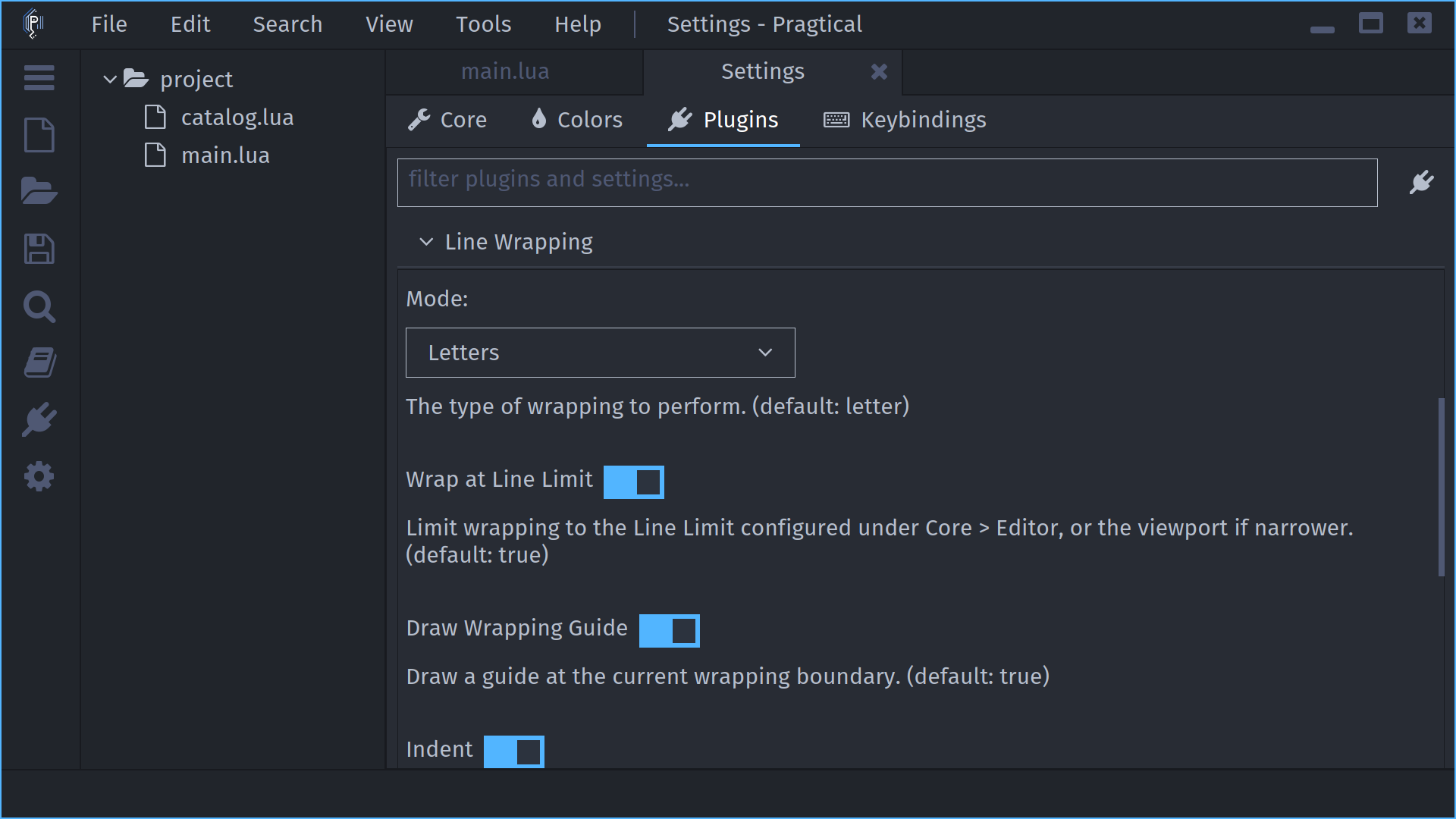
Open Settings > Plugins > Line Wrapping. Choose the wrapping mode and
adjust Wrap at Line Limit, Draw Wrapping Guide, and continuation
indentation. Set the shared Line Limit under Core > Editor. Searching
Settings for wrap_at_line_limit or line limit finds those controls directly.
Word and Letter Modes
word prefers whitespace breaks and keeps leading indentation with the first
word. A word that cannot fit a continuation row is split so it remains visible.
letter wraps at displayed-character boundaries. Both modes keep combining
marks and emoji sequences together and respect syntax-specific font widths.
With Indent enabled, continuation rows preserve the original line's indentation. Moving vertically, selecting with the mouse, searching, and folding continue to follow the displayed rows. The file's logical line numbers do not change.
An optional config.plugins.linewrapping.width_override can be a pixel width
or a function receiving the DocView. It takes precedence over automatic
viewport/column sizing and is intended for custom layouts.
The Diff Viewer also supports wrapping while keeping both sides aligned. For plugin interfaces, see the Line Wrapping API.