Workspace Sessions
The Workspace plugin remembers a project's open documents, split layout, active tab and view state. It saves automatically when exiting or changing projects and restores the matching project workspace on startup.
Choose a Saved Session
Open File > Sessions to see saved sessions for the current root project. Entries include a tab count and save time. Choose a session directly, or select Load Session to search the list using a command prompt.
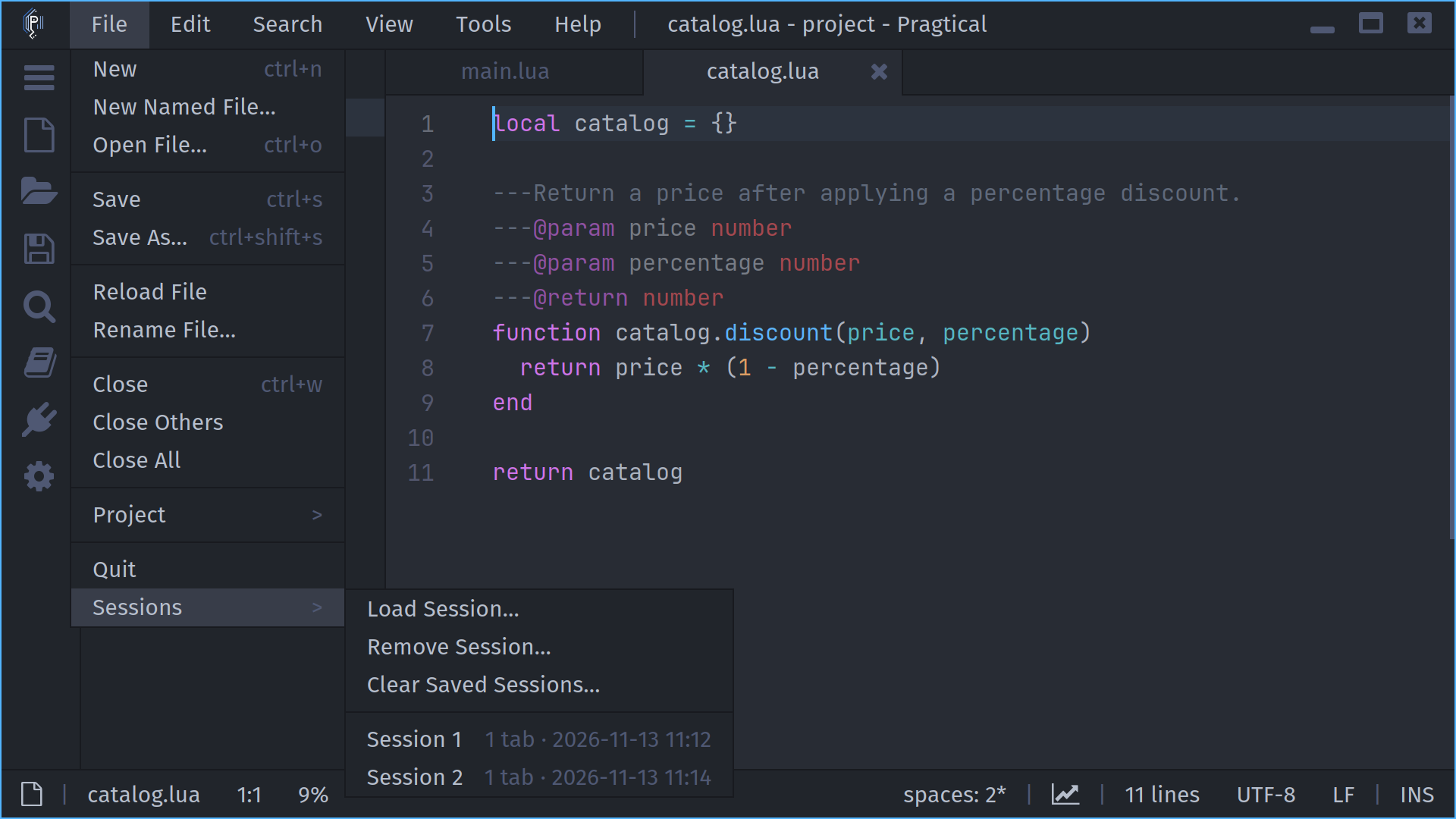
Before switching, the current workspace is backed up, including unsaved text in existing files and untitled documents. The chosen session replaces the document layout. If the backup or restoration fails, the current layout and selected saved session are retained.
Session loading restores buffers; it does not save those buffers to their files. Review restored edits before saving them.
Remove Saved Sessions
Remove Session lets you choose one saved session to delete. Clear Saved Sessions removes all saved sessions belonging to the current root project after confirmation. Neither action closes the currently open tabs or removes sessions belonging to another project. Automatic saving on exit remains enabled.
| Command | Action |
|---|---|
workspace:load-session | Choose a saved workspace to load. |
workspace:remove-session | Choose a saved session to remove. |
workspace:clear-sessions | Confirm removal of this project's saved sessions. |
Added project directories are stored as absolute paths, so restoration does not depend on the directory from which the editor was launched. Sessions are local user state; they are separate from trusted project configuration and from a plugin's optional project storage.